
This function allows users to transfer report templates between different company databases using an .rpt file.
Steps to Export and Import a Report:
Steps 1: Export Report from Source Company
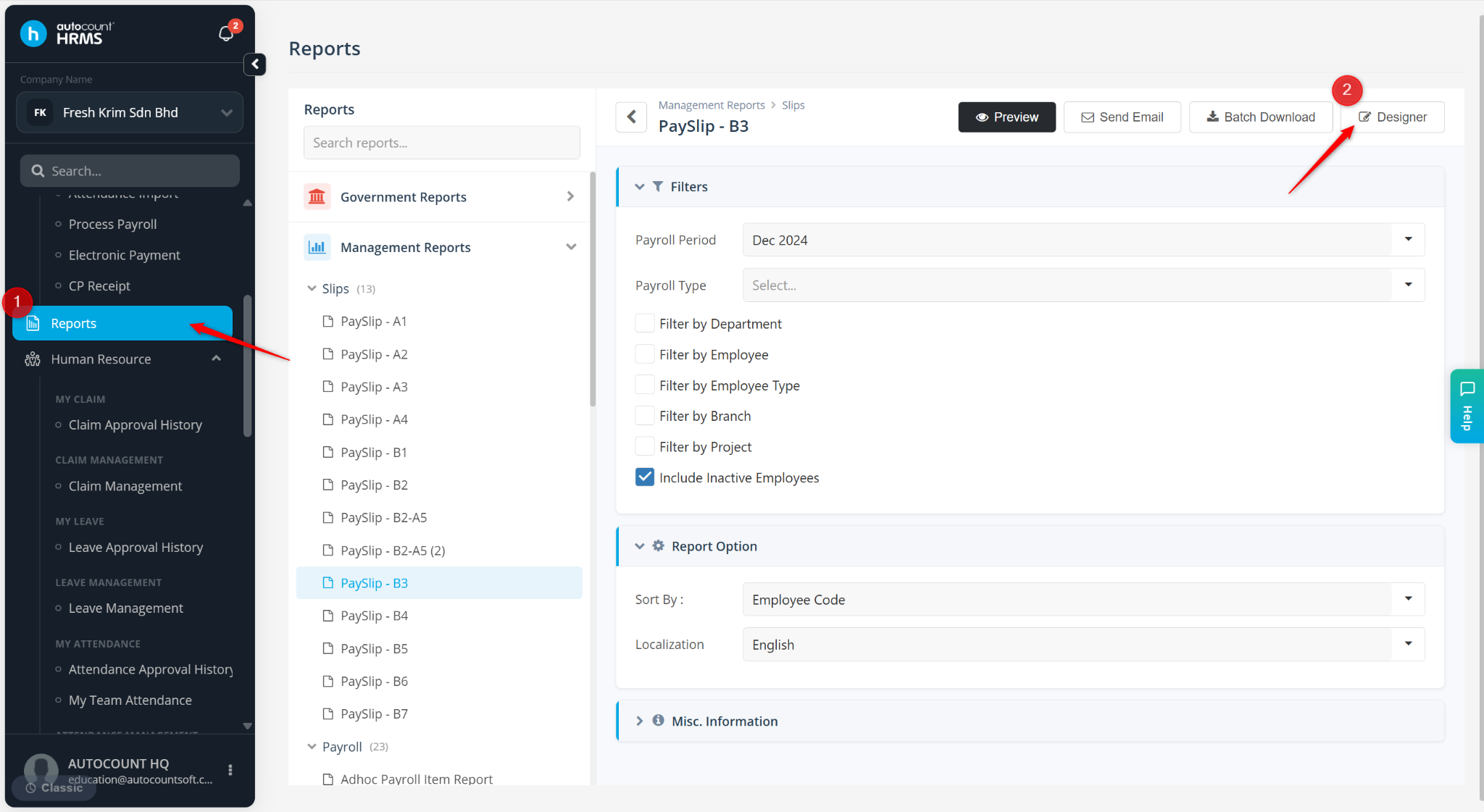
Go to Reports in the source company.
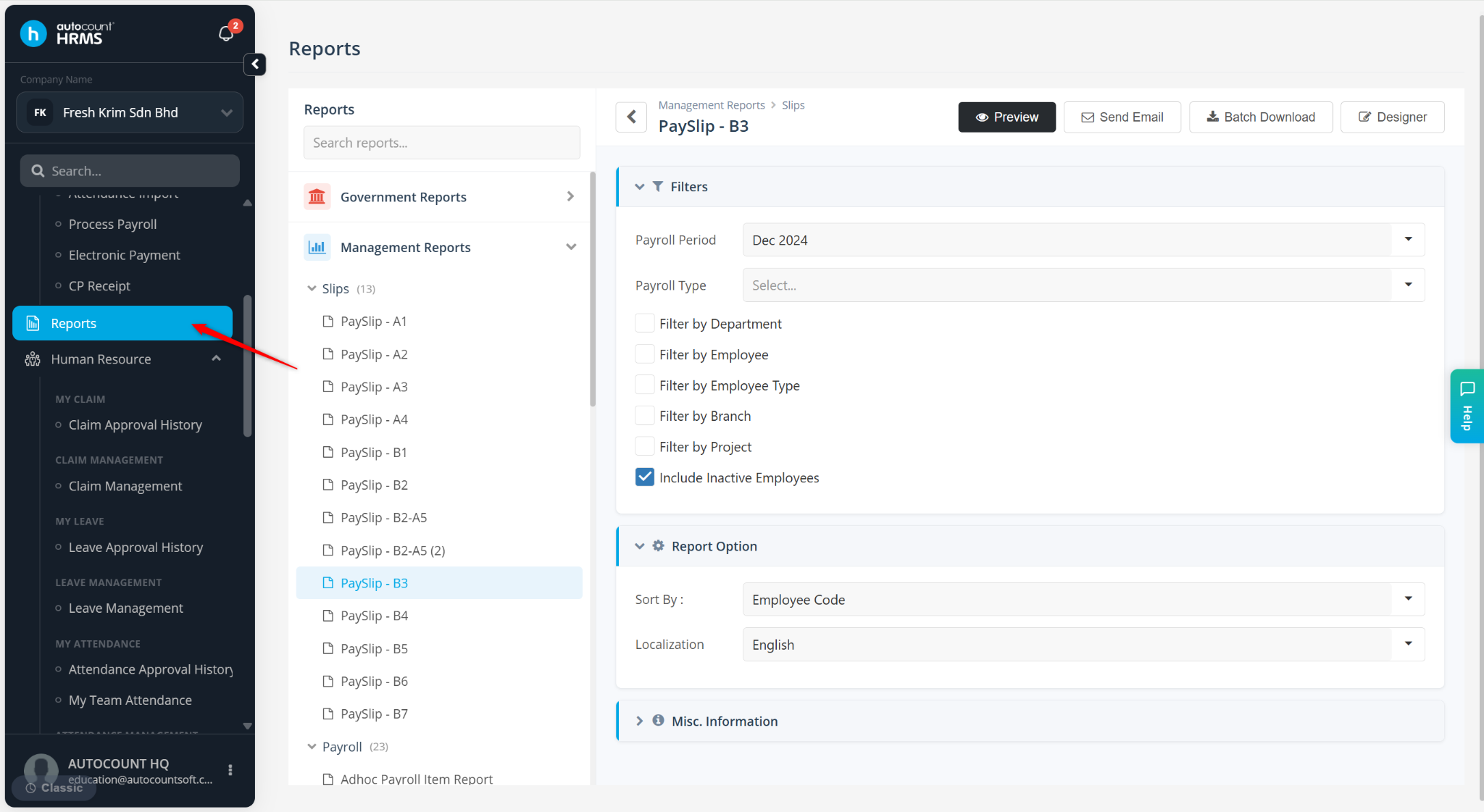
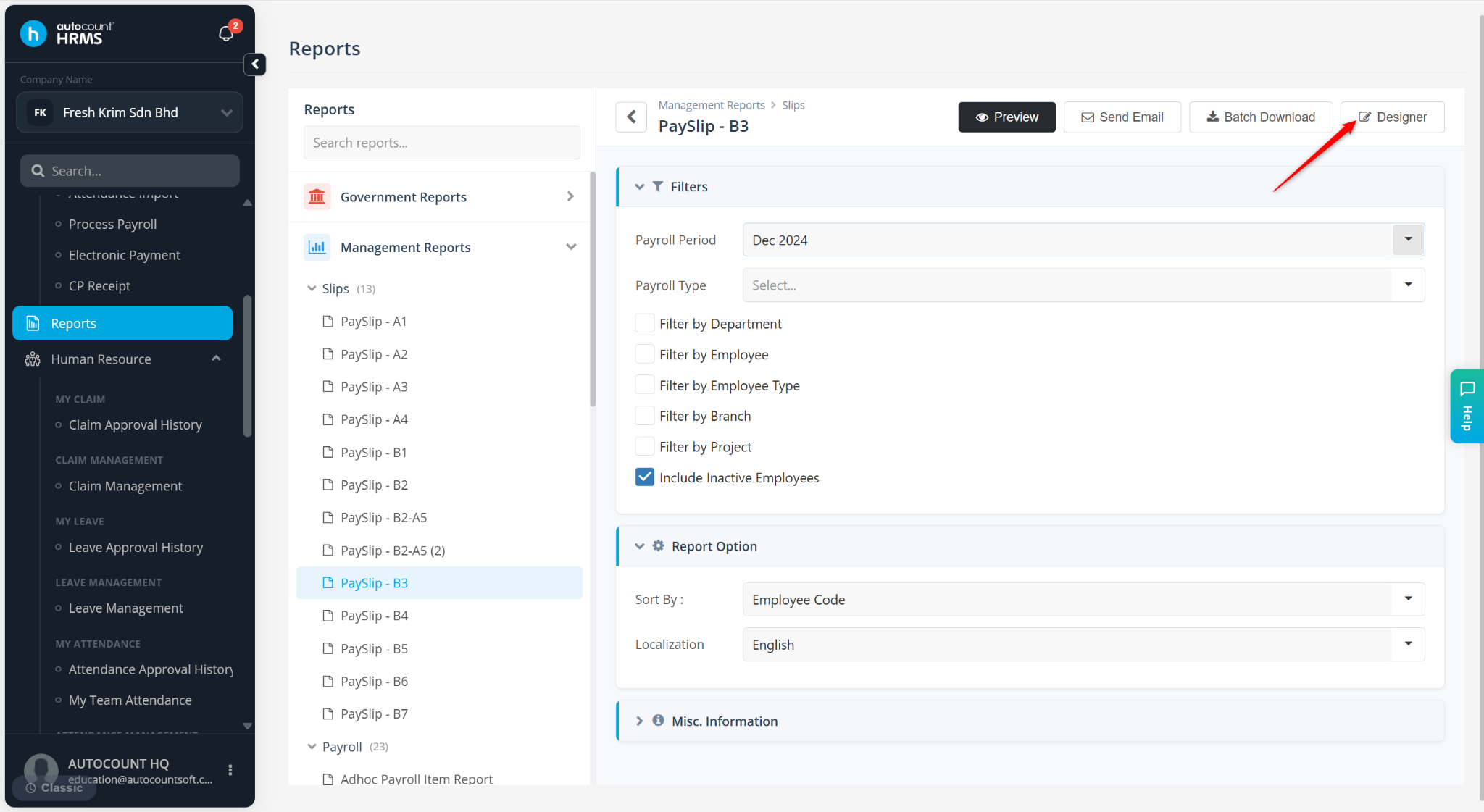
Select the required report and click Designer.
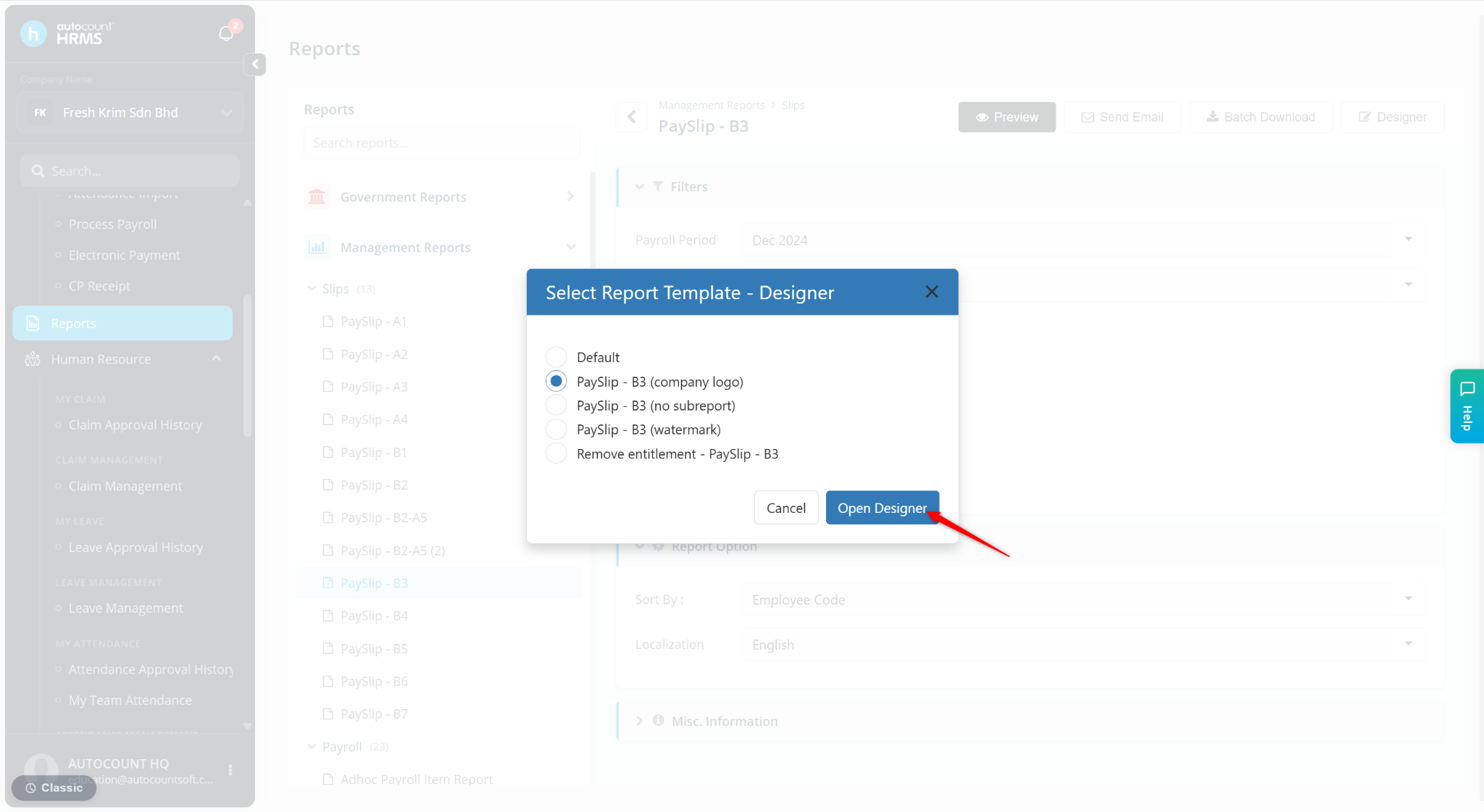
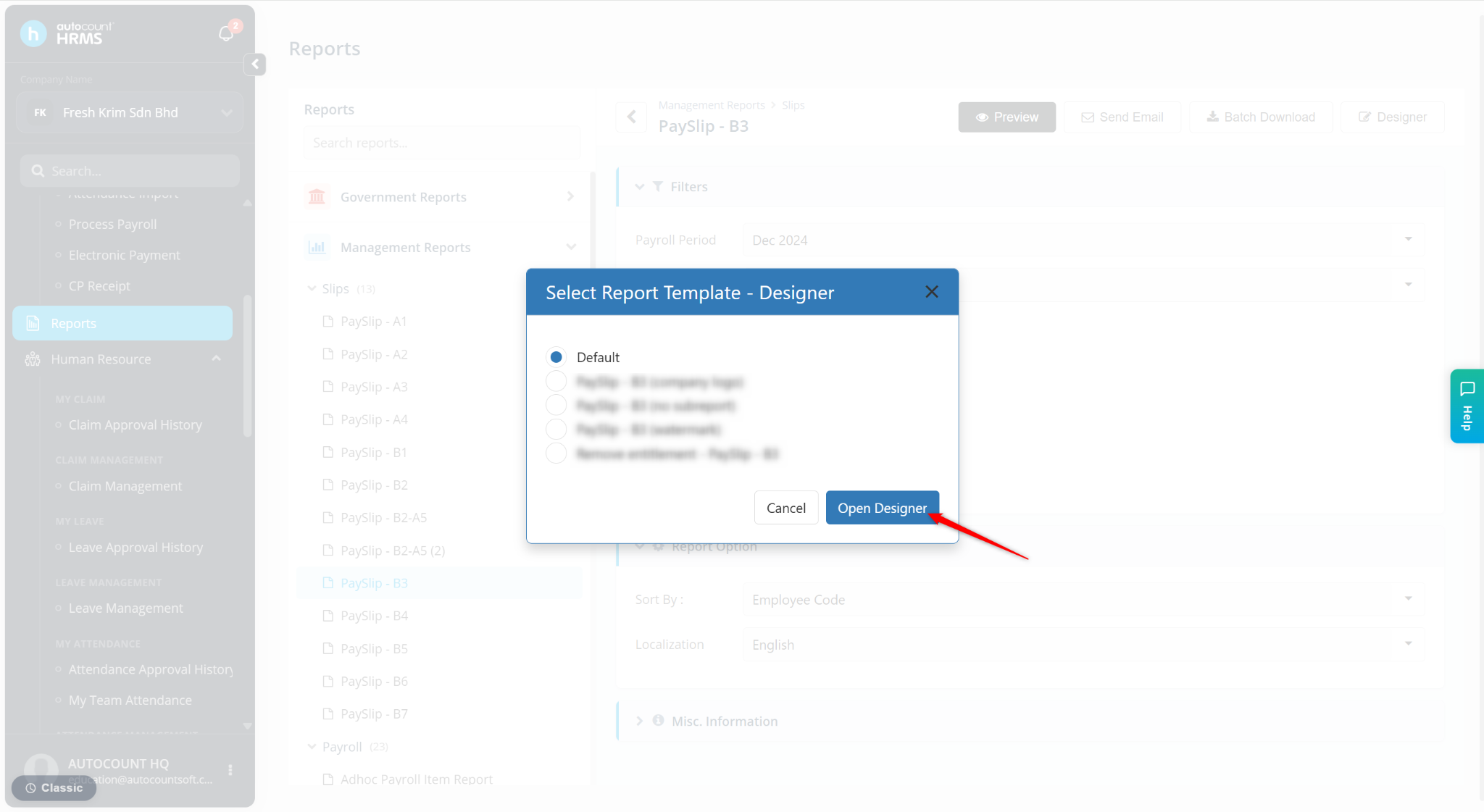
Select the template you wish to export and click Open Designer.
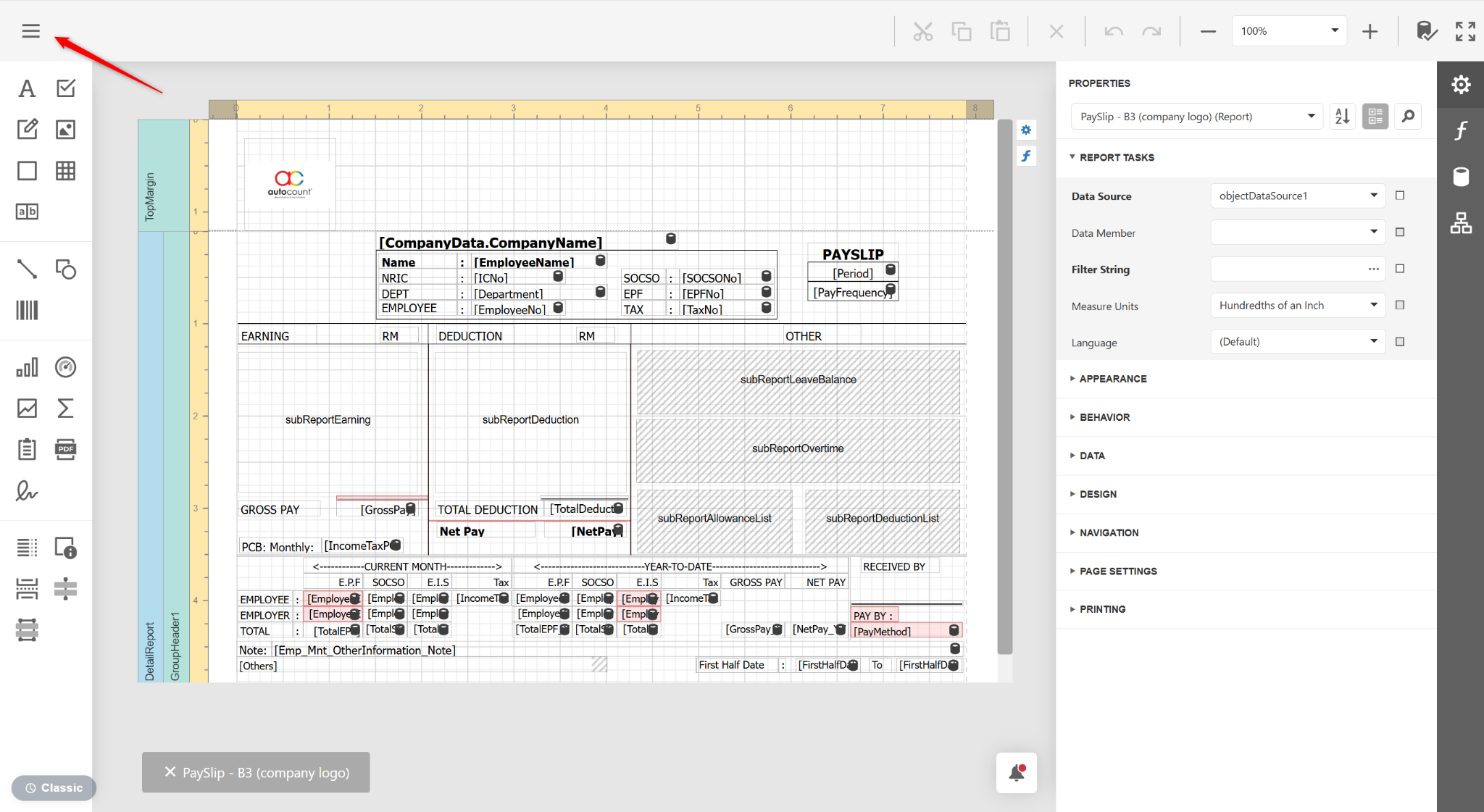
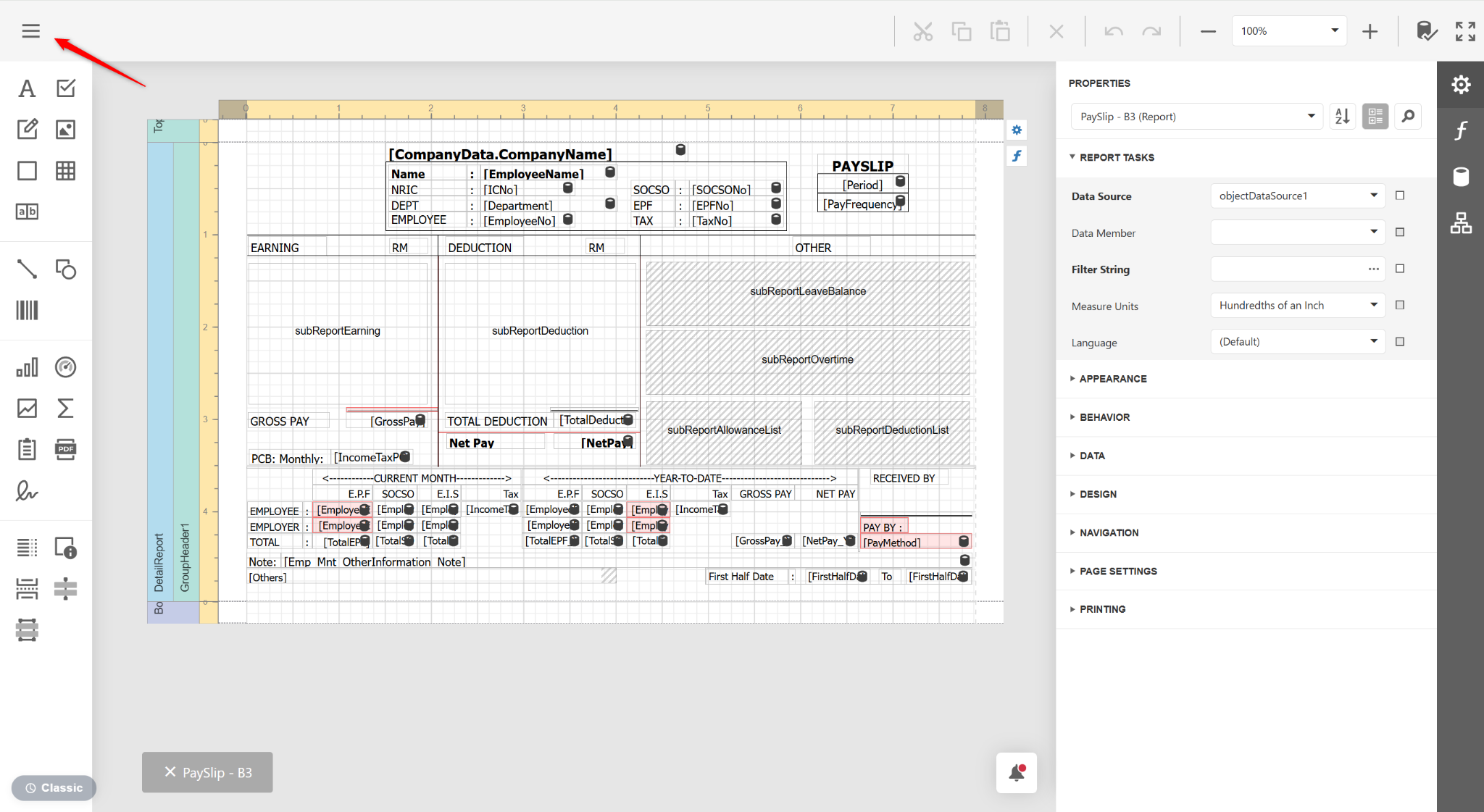
Click the three horizontal lines icon.
Select Export.
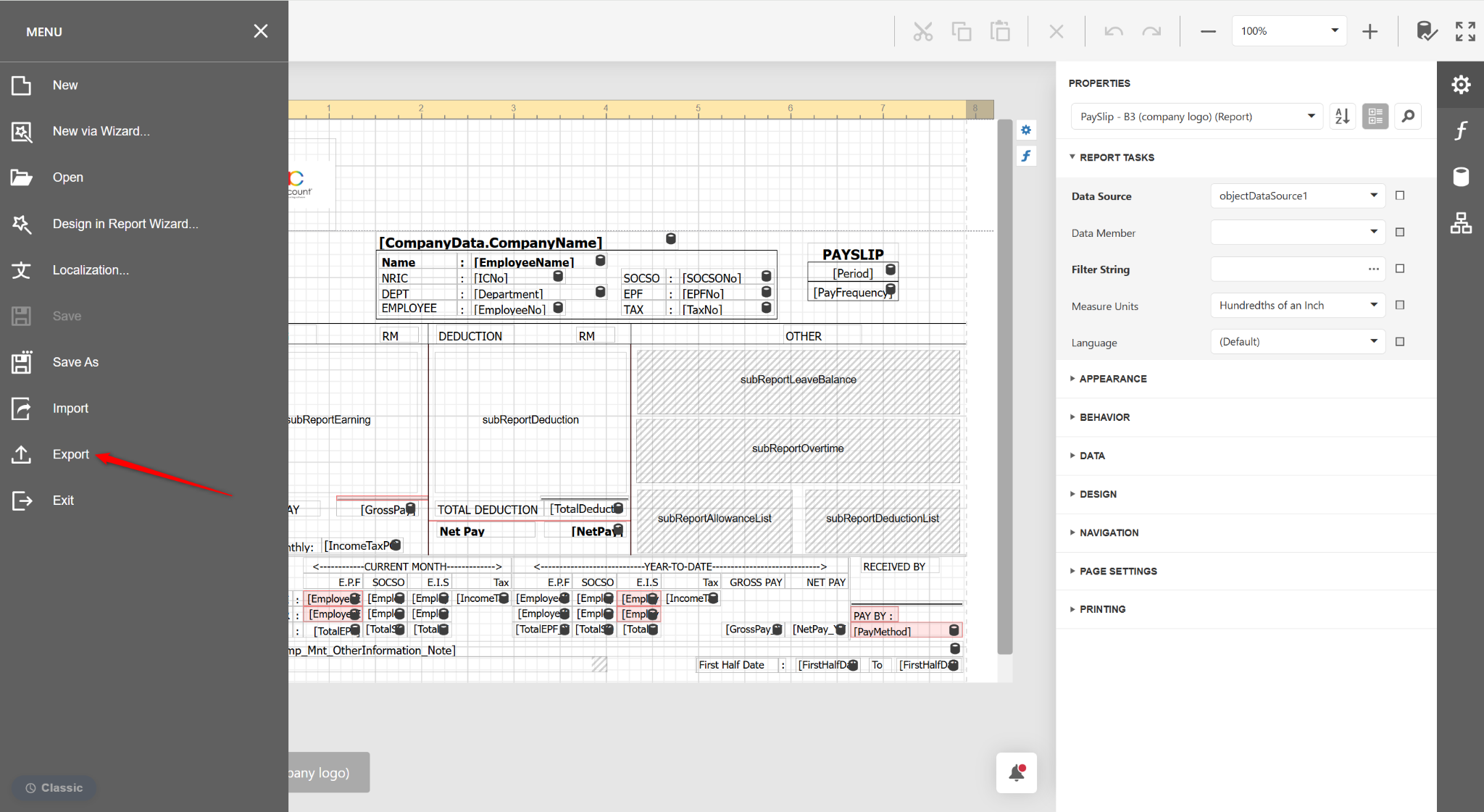
The system will generate and download an .rpt file.
Steps 2: Import Report to Target Company
Switch to the target company.
Go to Reports.
Navigate to the same report and click Designer.
Select the Default template and click Open Designer.
Click the three horizontal lines icon.
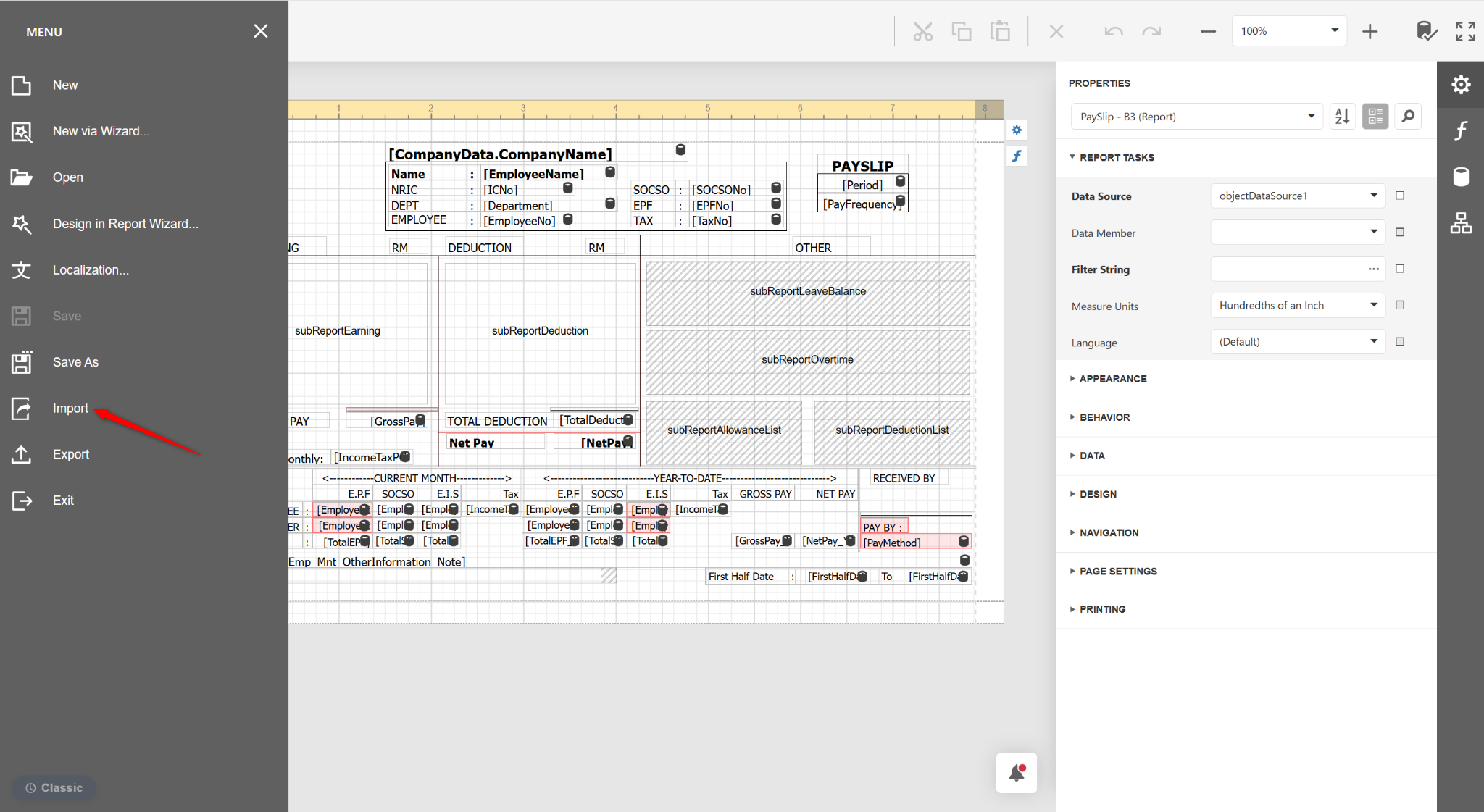
Select Import.
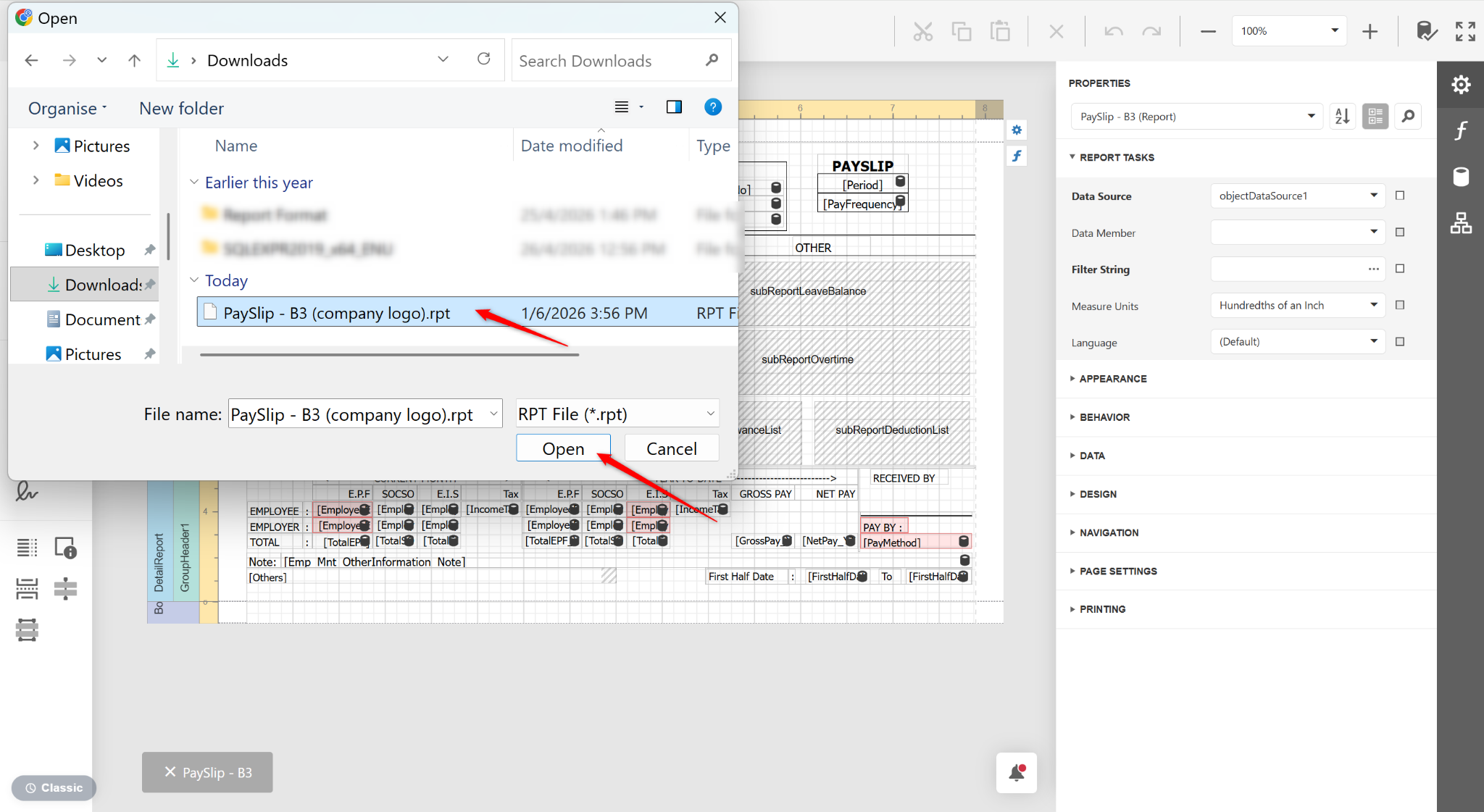
Select the .rpt file, and click Open.
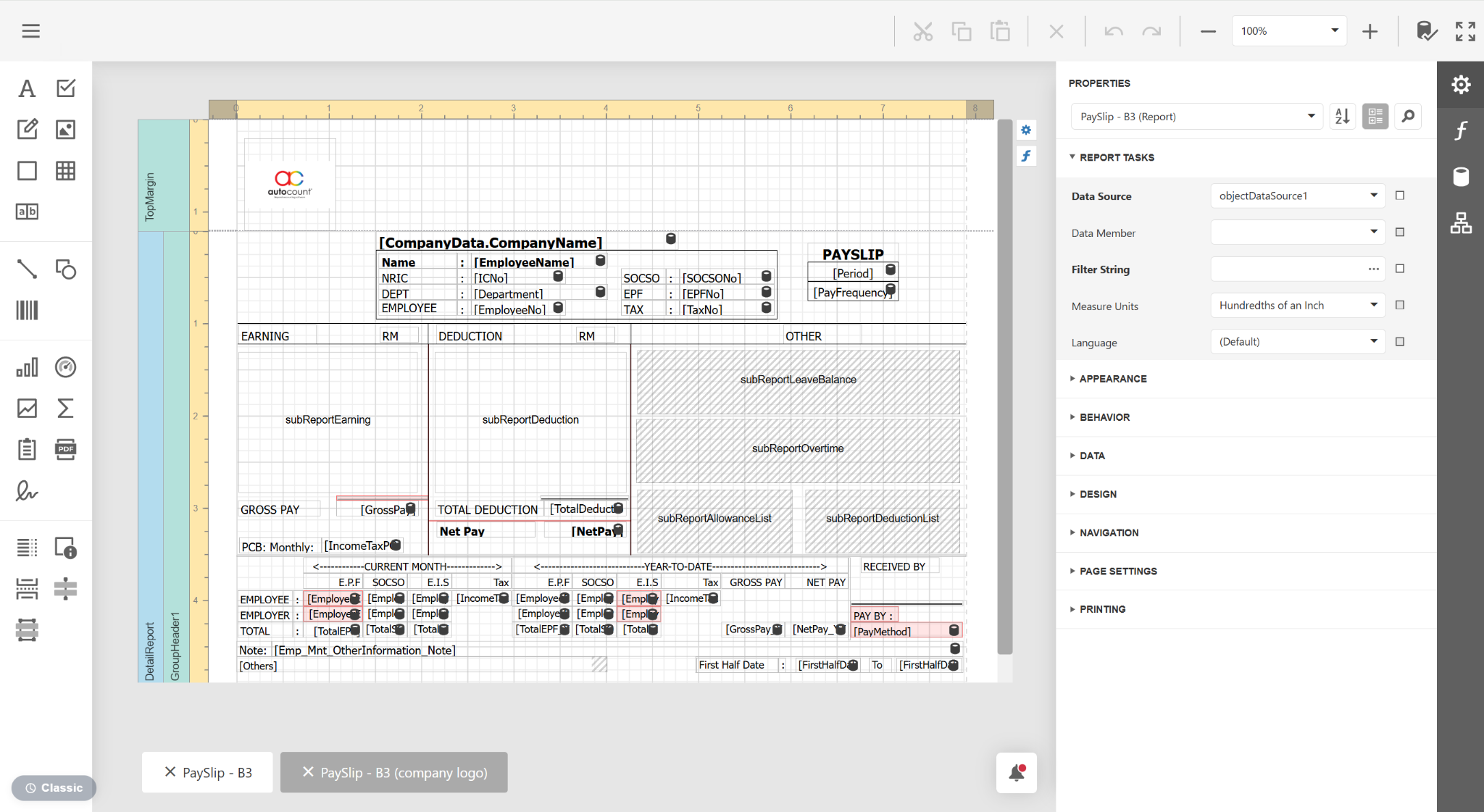
The report template will be imported successfully.
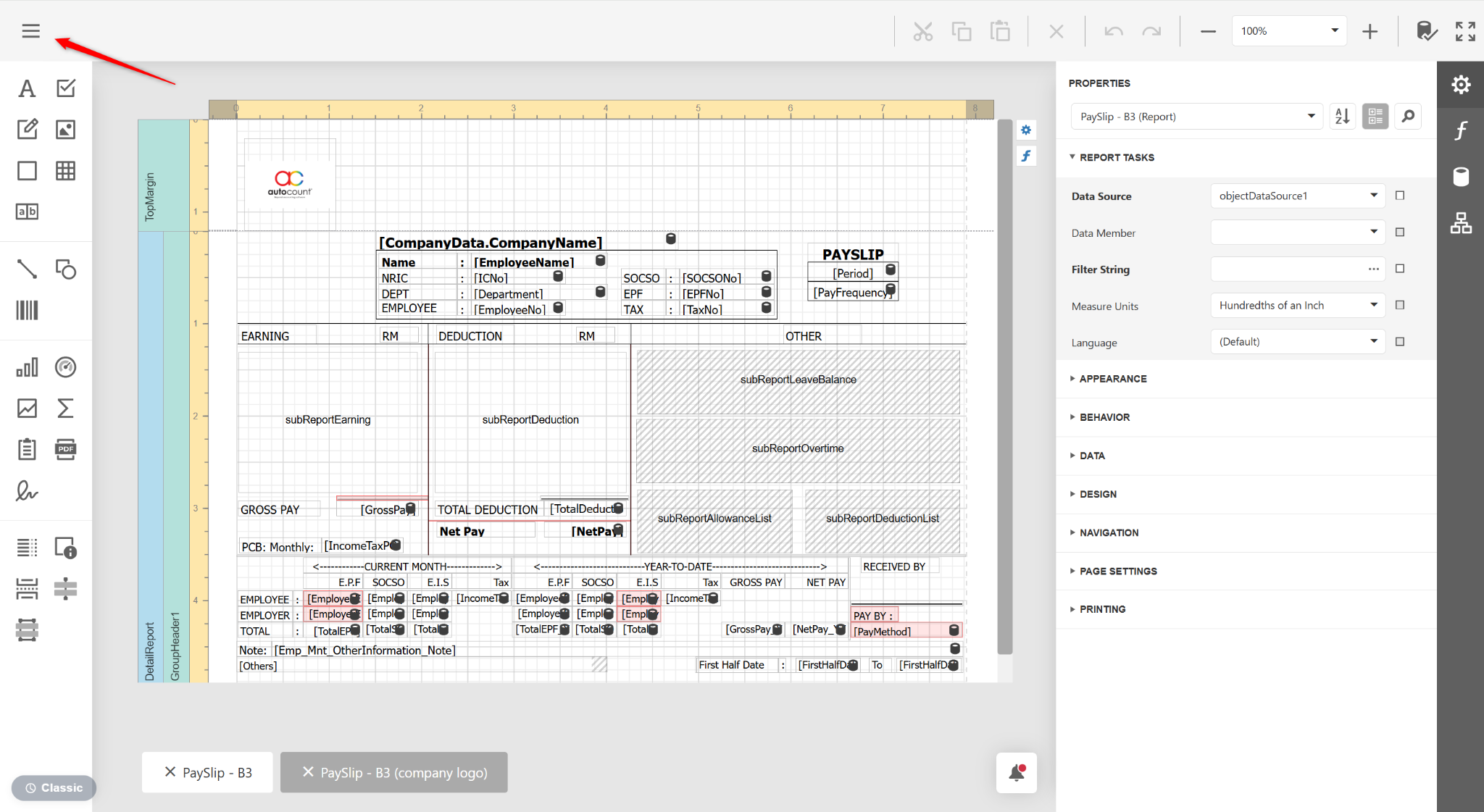
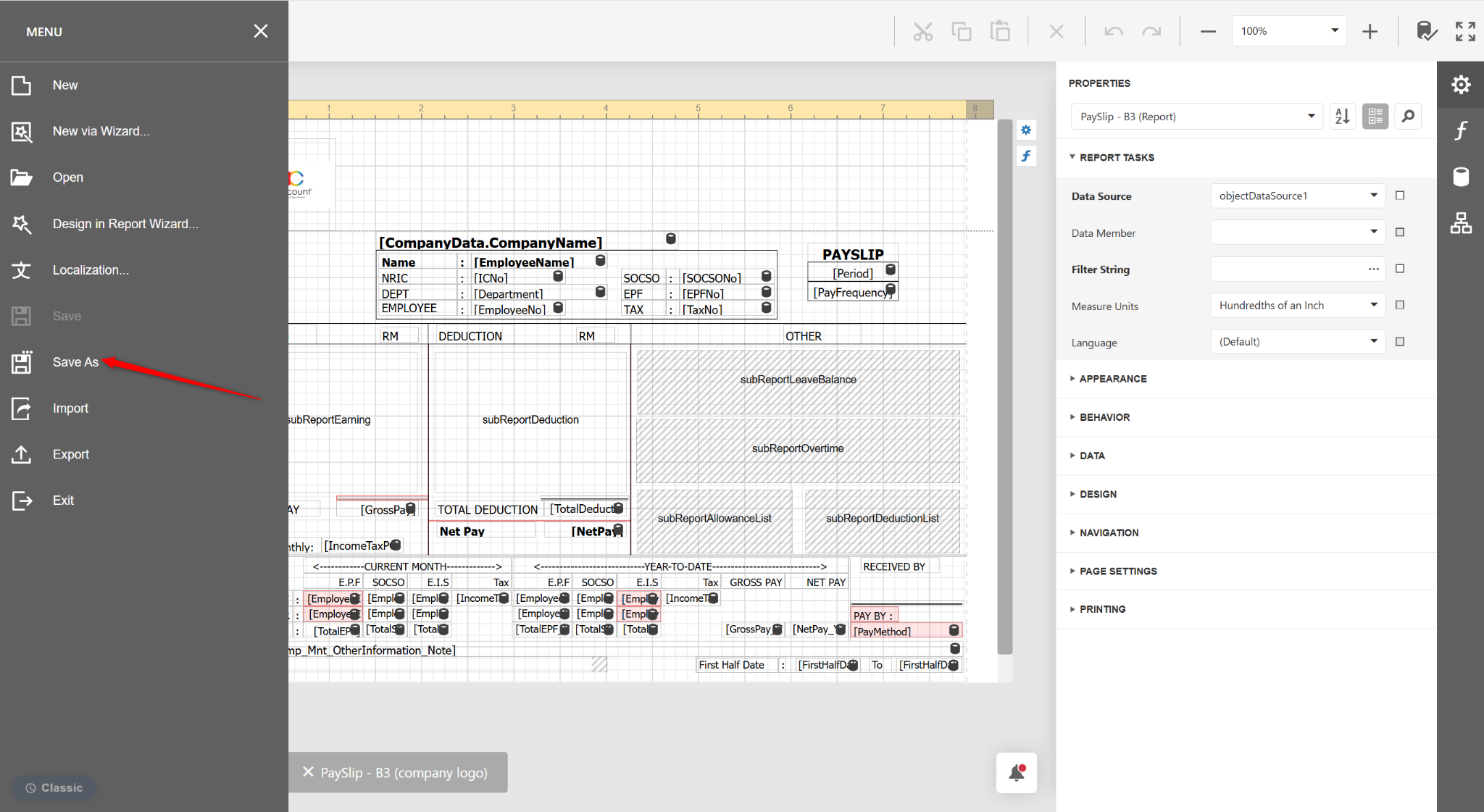
Click the three horizontal lines icon again.
Select Save As.
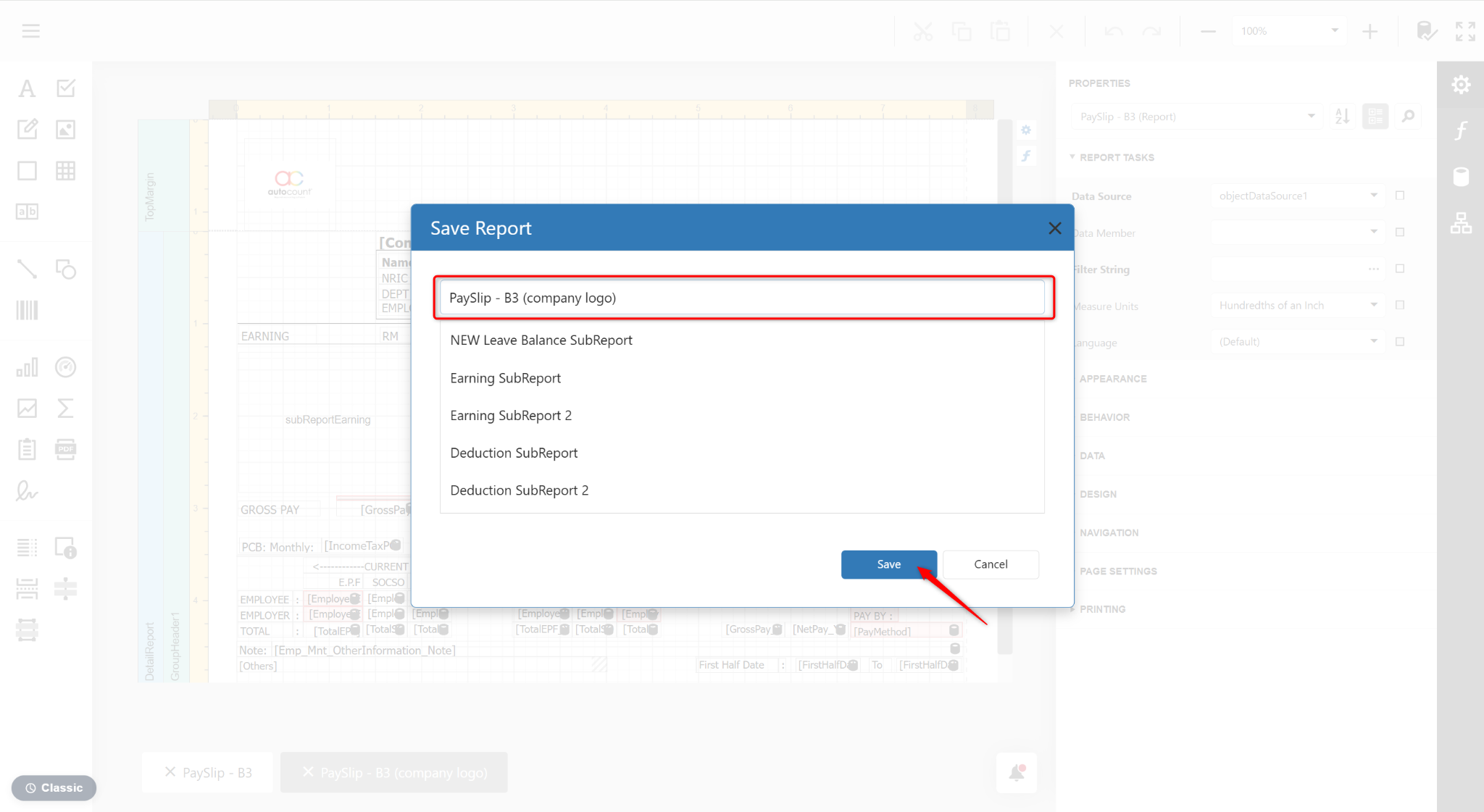
Enter a new report name, and click Save.
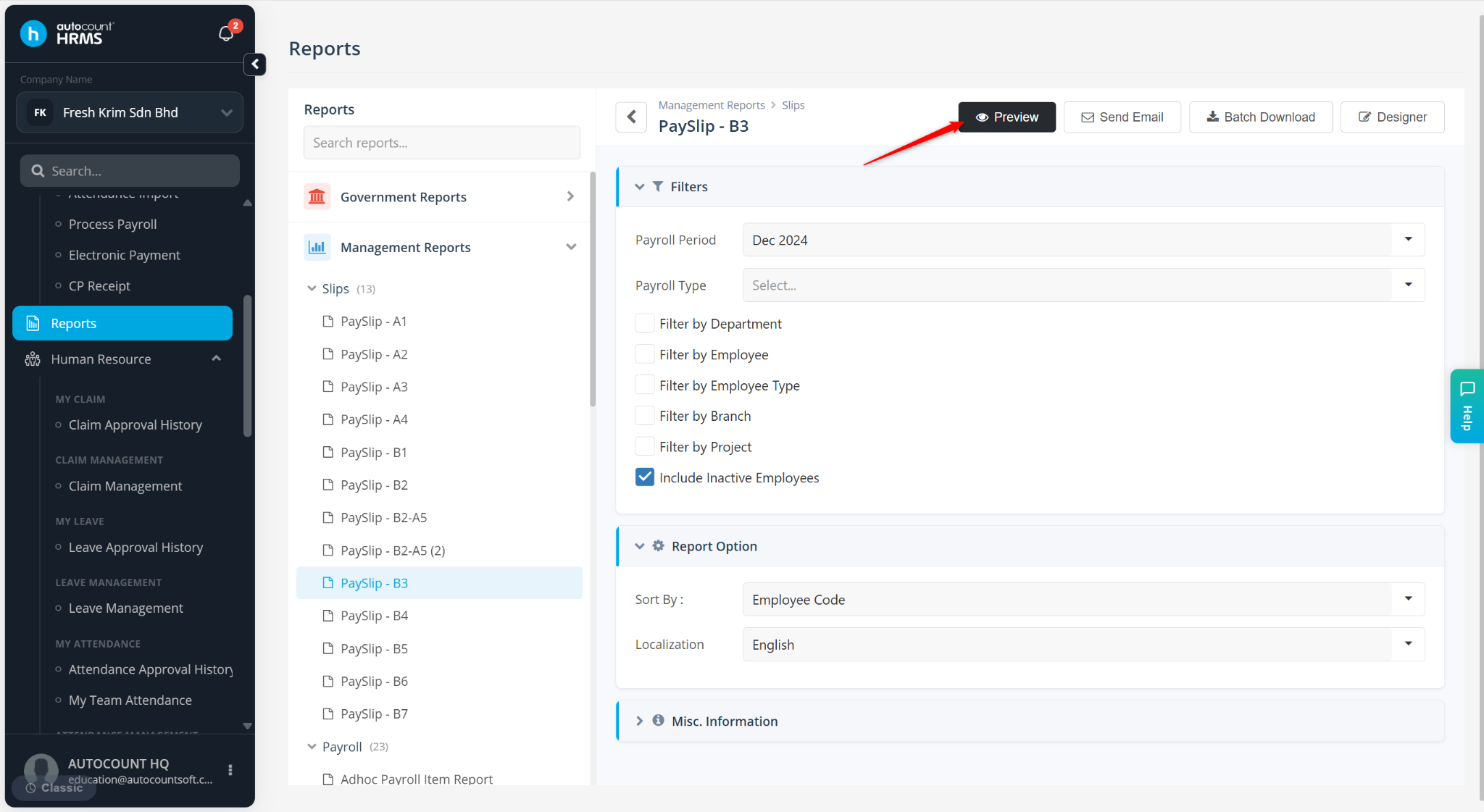
Return to the Report page and click Preview.
Select the newly imported report and click Preview.
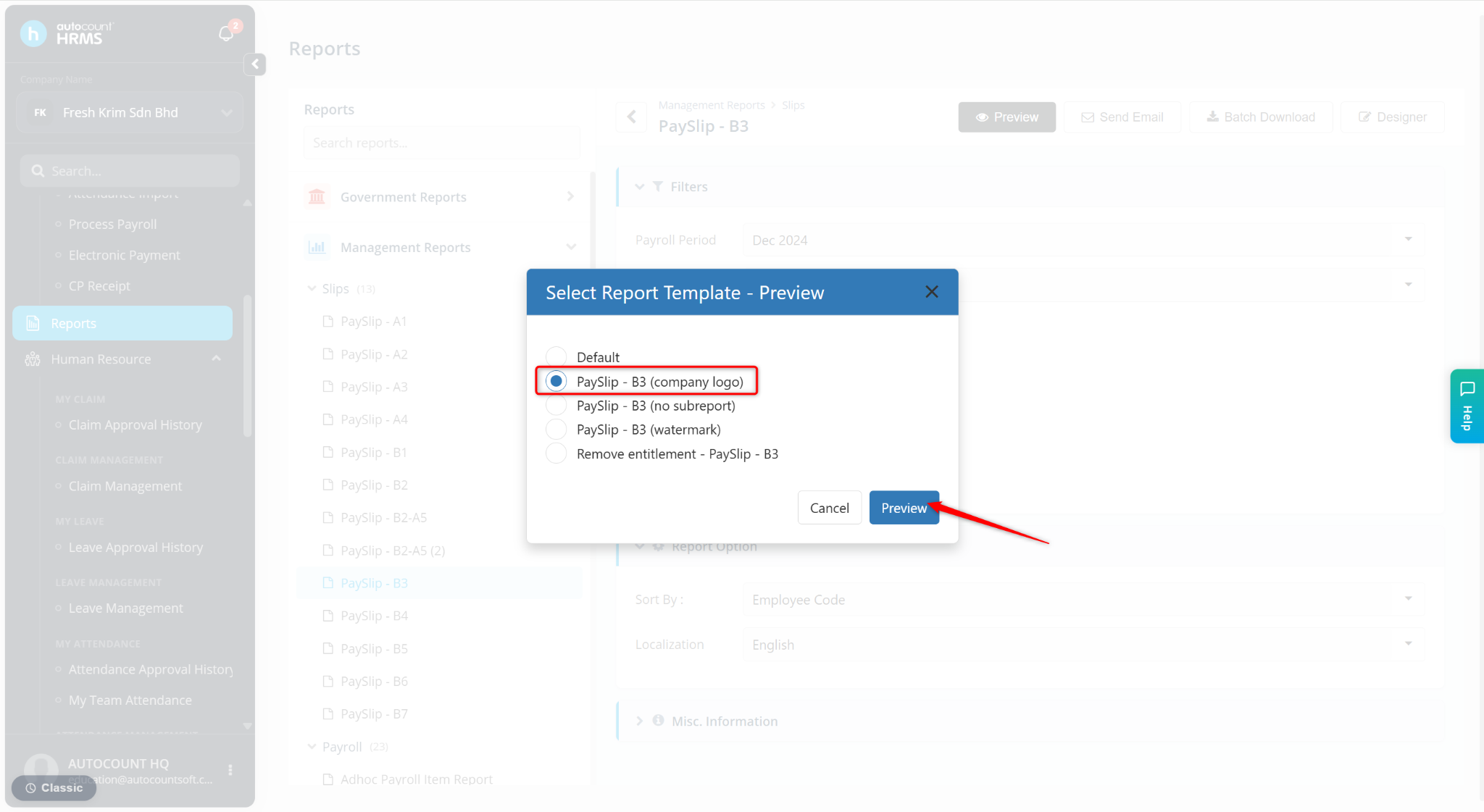
The report template from the source company will be successfully transferred and available in the target company for use.