
The Transfer Subscription feature allows users to transfer ownership of a subscription from one account to another. This is useful when there is a change in subscription ownership, company administration, or account management responsibilities.
Steps to Transfer a Subscription:
Go to the Subscription page.
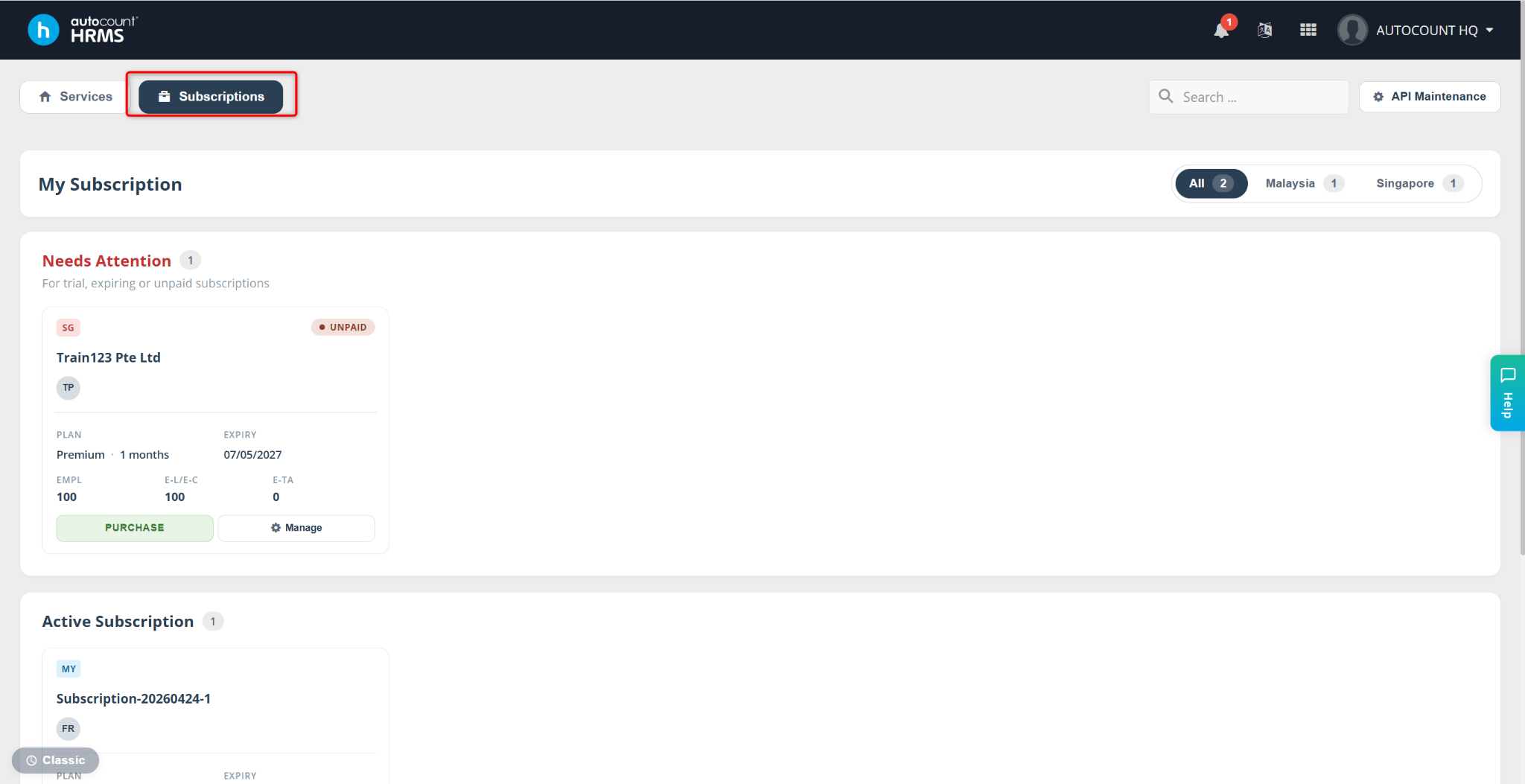
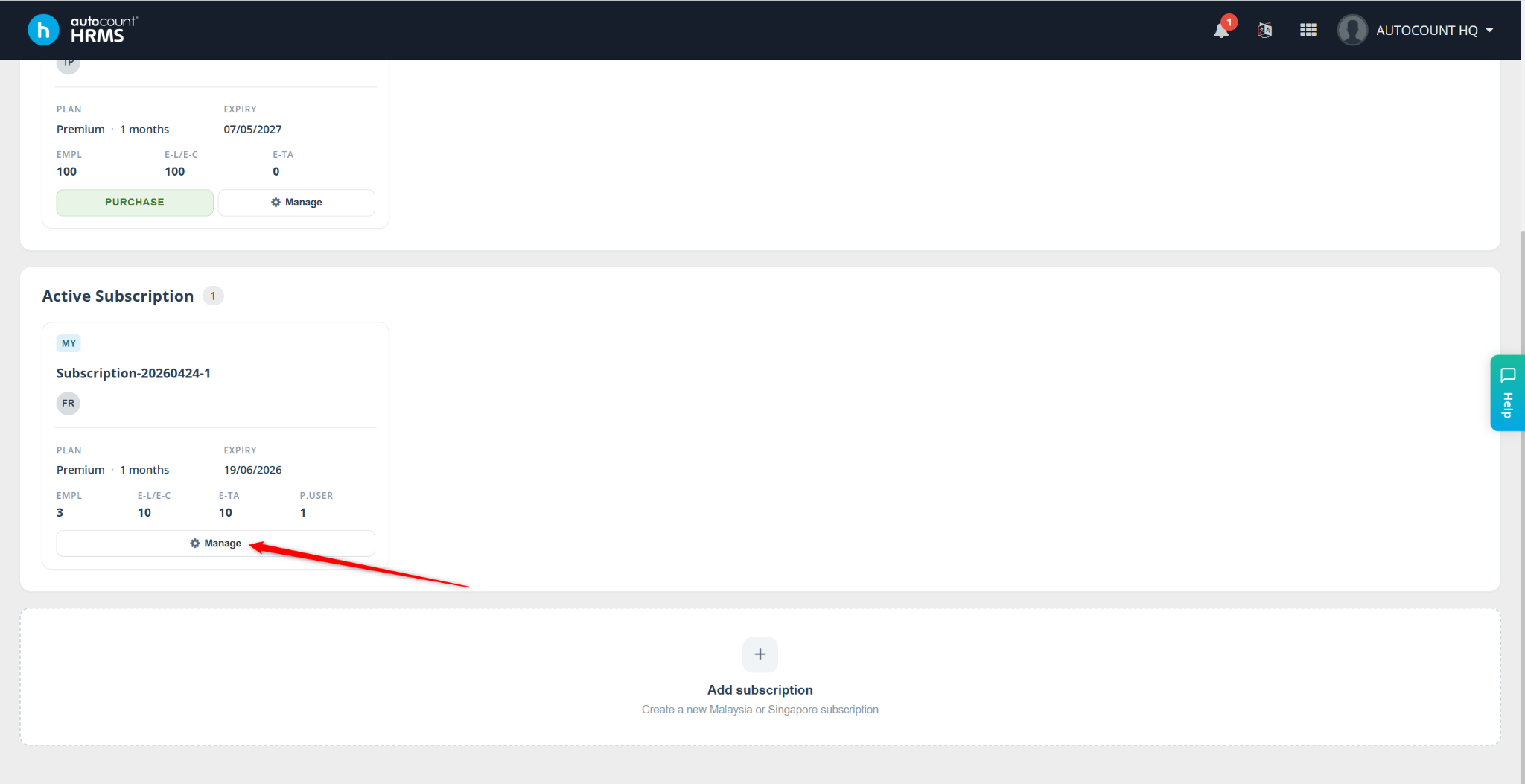
Locate the subscription you wish to transfer and click Manage.
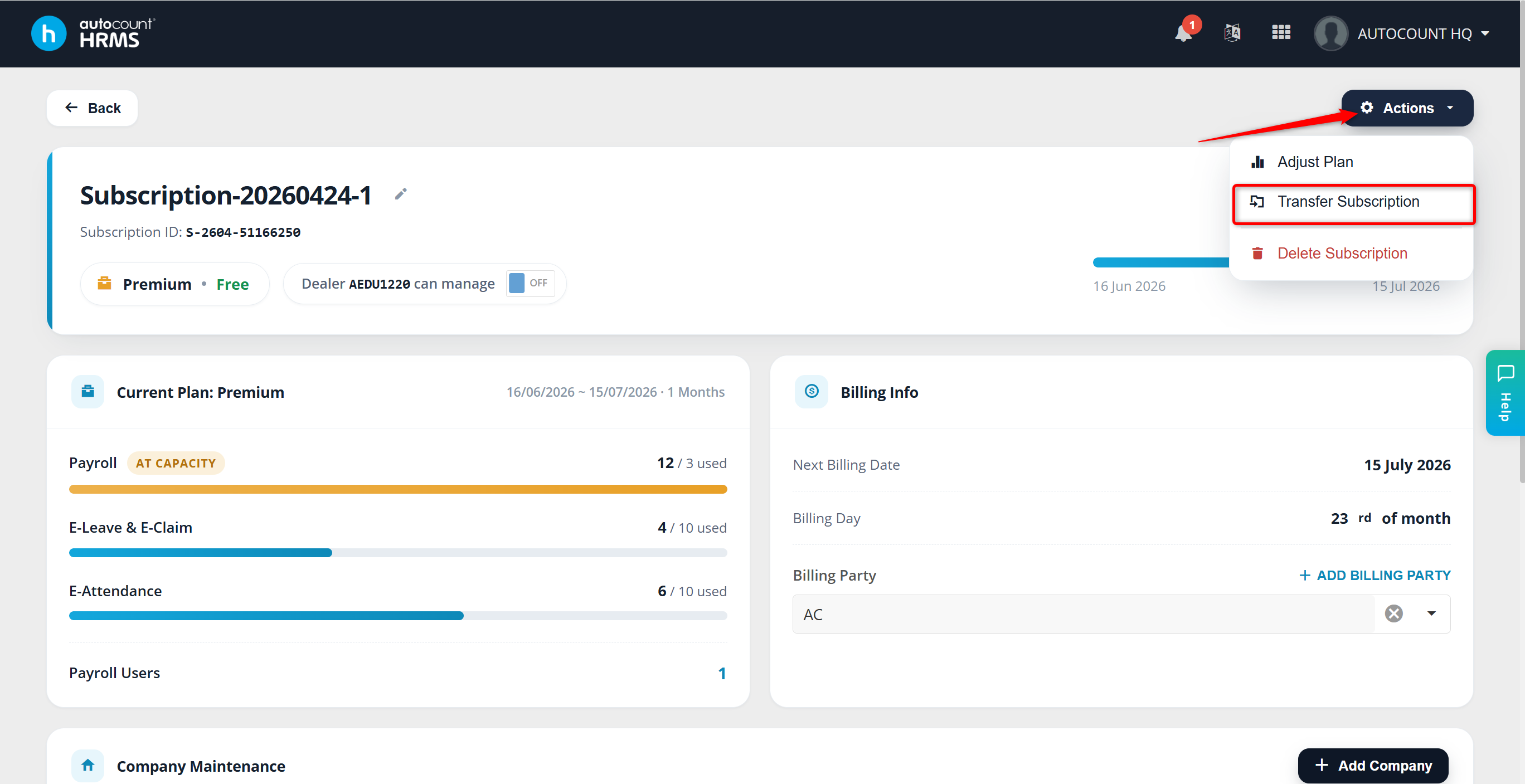
Click Actions and select Transfer Subscription.
The Transfer Subscription window will appear. Enter the User Email of the new subscriber and click Transfer Subscription.
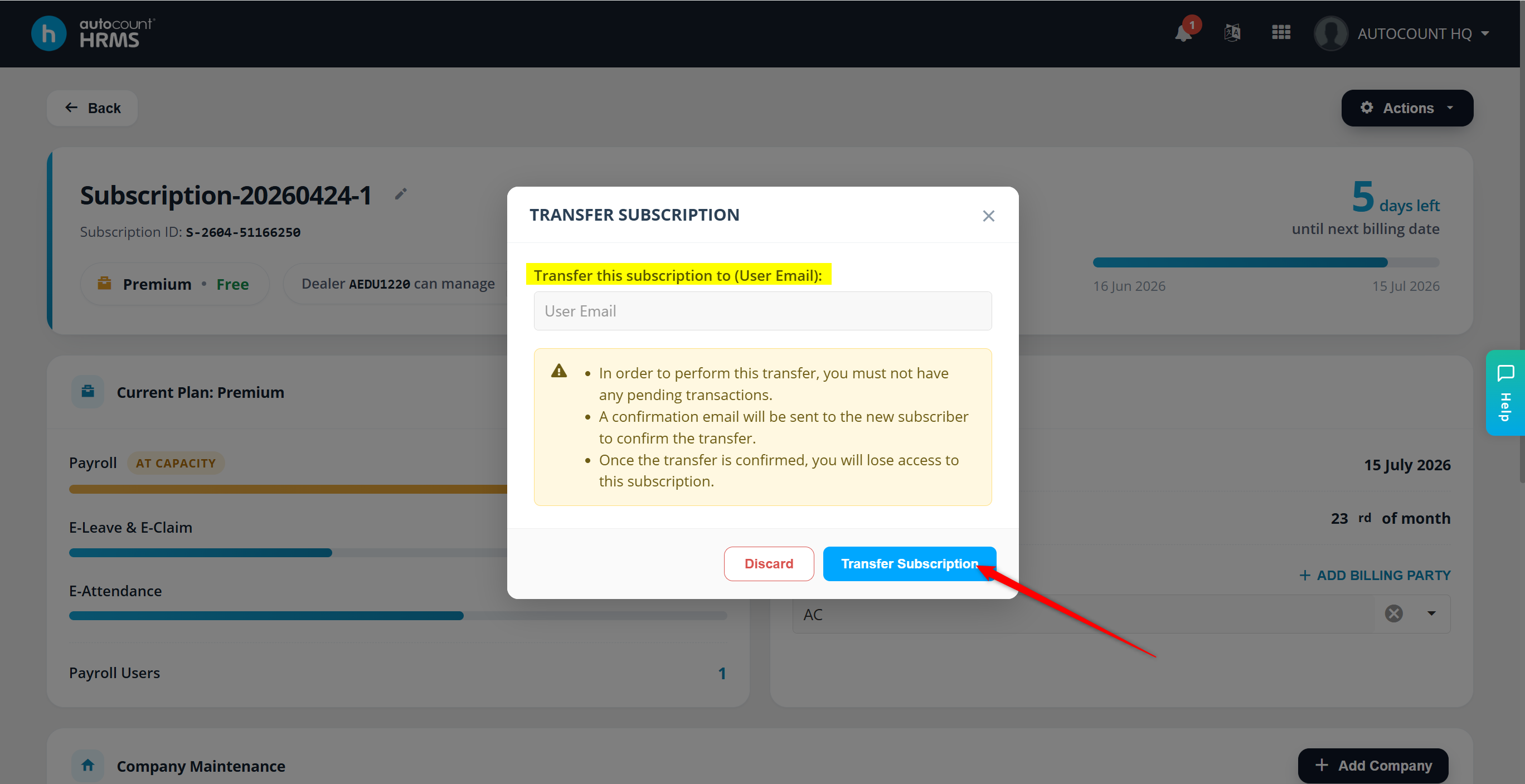
ℹ️ Note: The recipient must not have any pending subscription transactions. A confirmation email will be sent to the new subscriber. Once the transfer is completed, the current subscriber will lose ownership of the subscription.
Enter the Subscription ID to confirm the transfer request.
Click Confirm Transfer.
The new subscriber must click Confirm Transfer or use the confirmation link provided in the email.
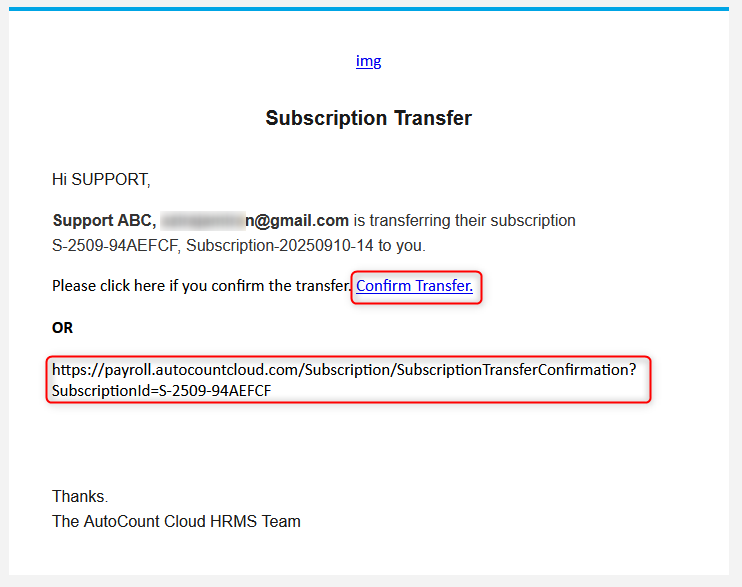
The Subscription Transfer page will be displayed. Click Approve to proceed.
ℹ️ Note: After approval, the previous subscriber will automatically be converted into a Payroll User for all companies under the transferred subscription.
A final confirmation prompt will appear. Click Yes to complete the transfer.
Written by: Azirah (20250911)