
You can now integrate AutoCount HRMS with Google Calendar. This allows leave information, shift schedules, reminders, and important notifications to be automatically synchronised with Google Calendar.
Feature Overview
This feature enables:
Employees, Payroll Users, and Managers to synchronise HRMS events such as leave, holidays, rest days, shifts, and to-do lists with Google Calendar.
Payroll Users and Managers to synchronise HRMS reminders and notifications to Google Calendar.
A. Sync HRMS Calendar with Google Calendar (Employee / Payroll User)
Steps to Synchronise Calendar Events:
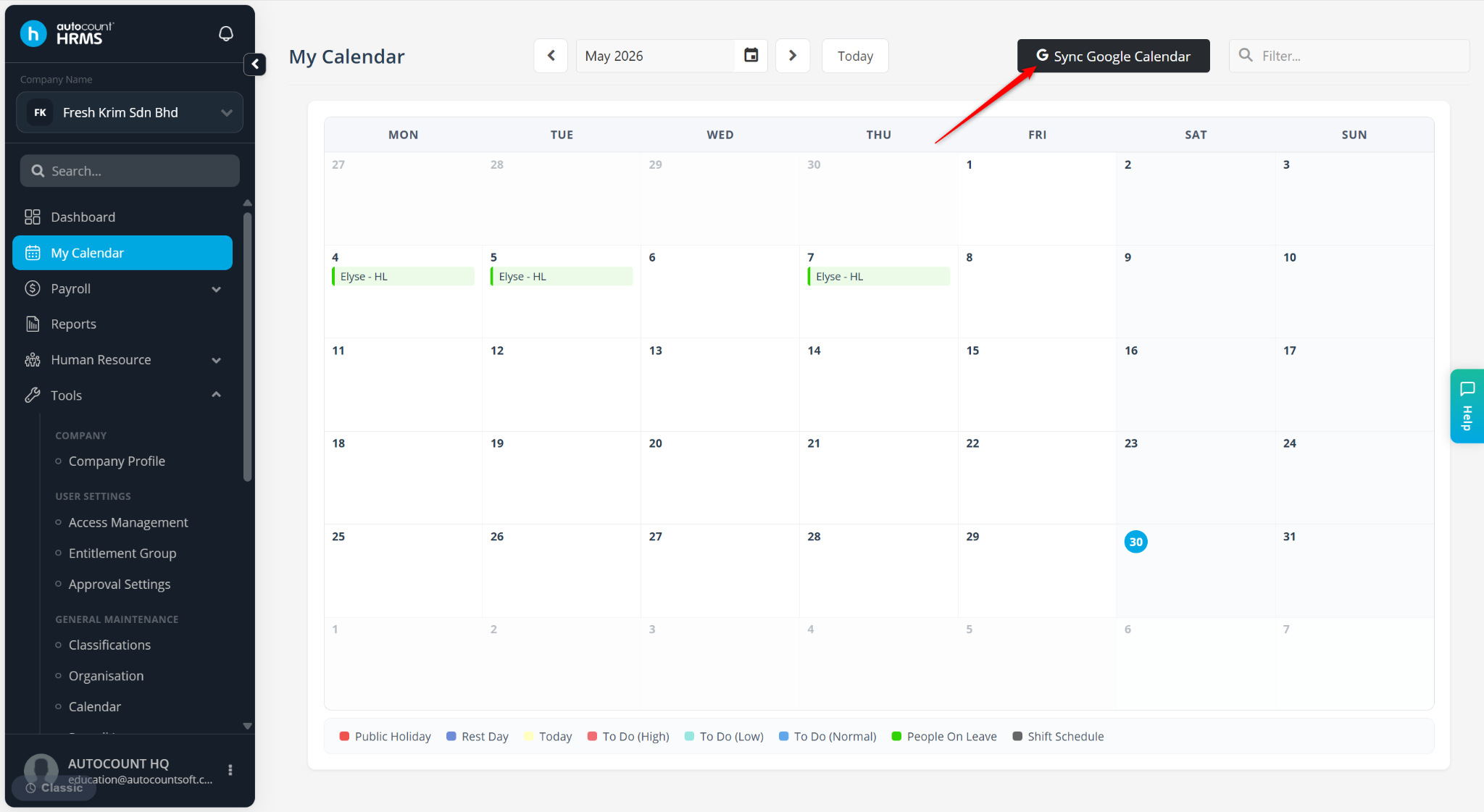
Go to My Calendar.
Click Sync Google Calendar at the top-right corner.
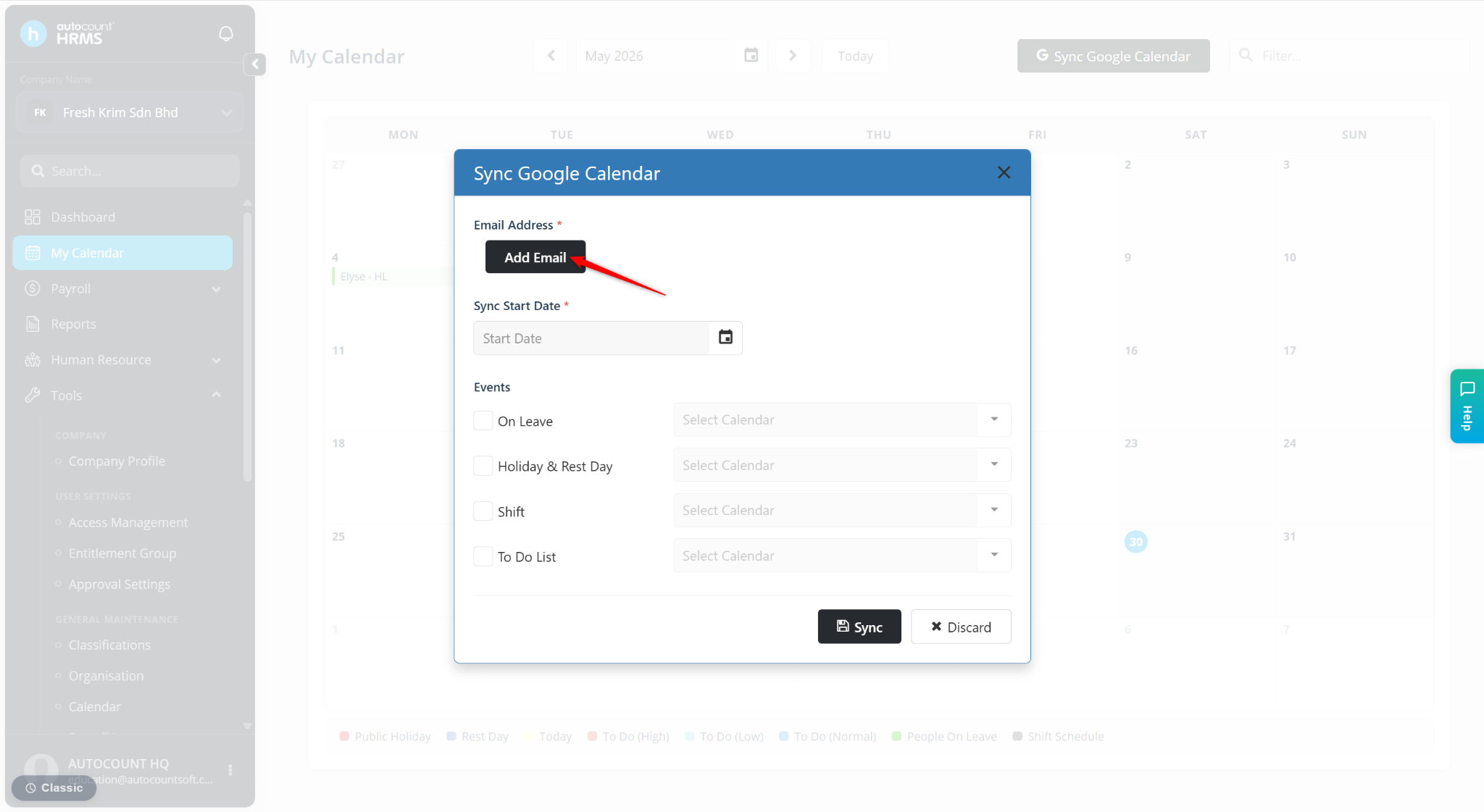
Click Add Email to connect your Google account.
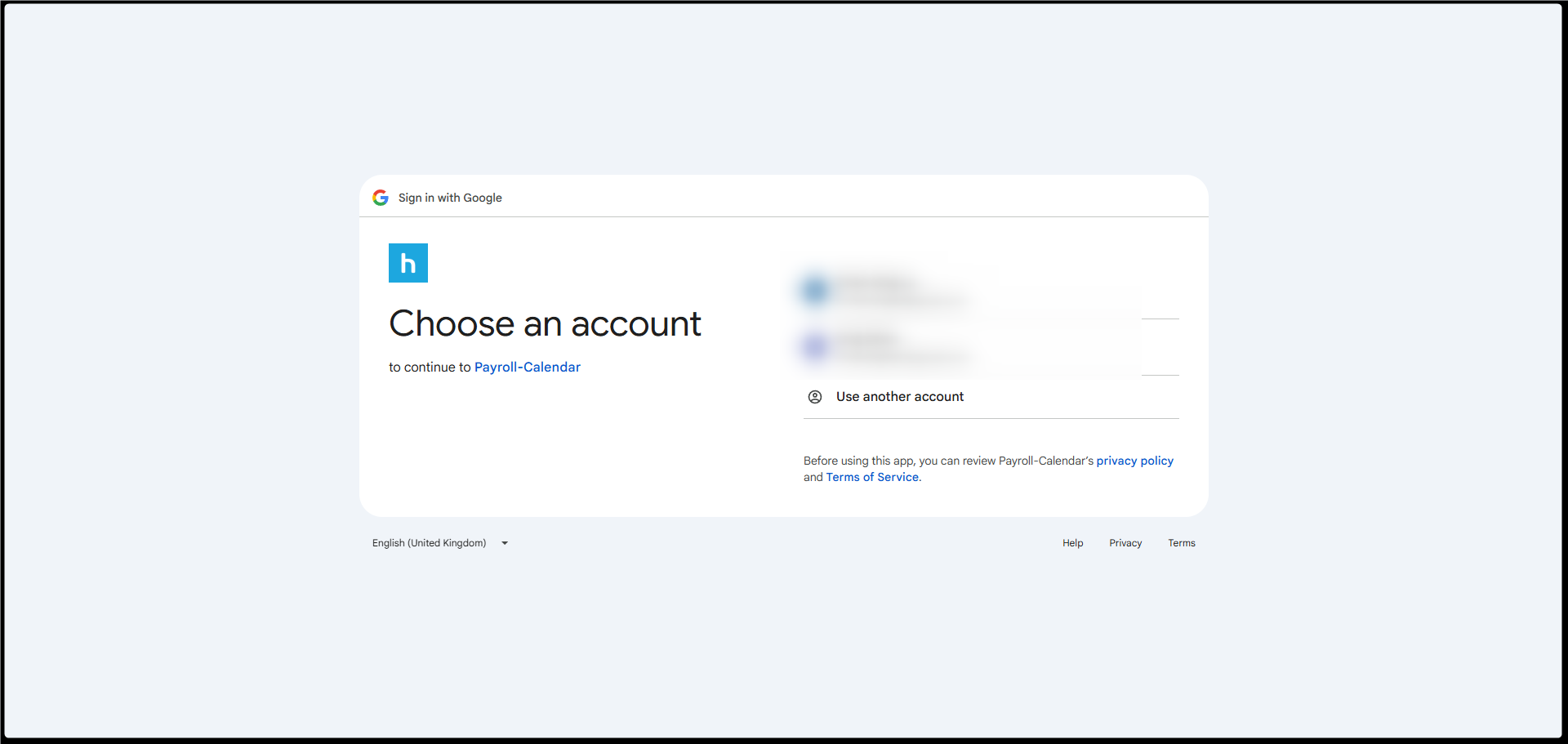
Sign in with your Google account and grant the required permissions.
After successful connection, your email address will appear in the Email Address field.
Select the Start Date from which HRMS events should begin synchronising.
Tick the event types you wish to synchronise.
For each event type, select the corresponding Google Calendar if you have multiple calendars.
Click Sync.
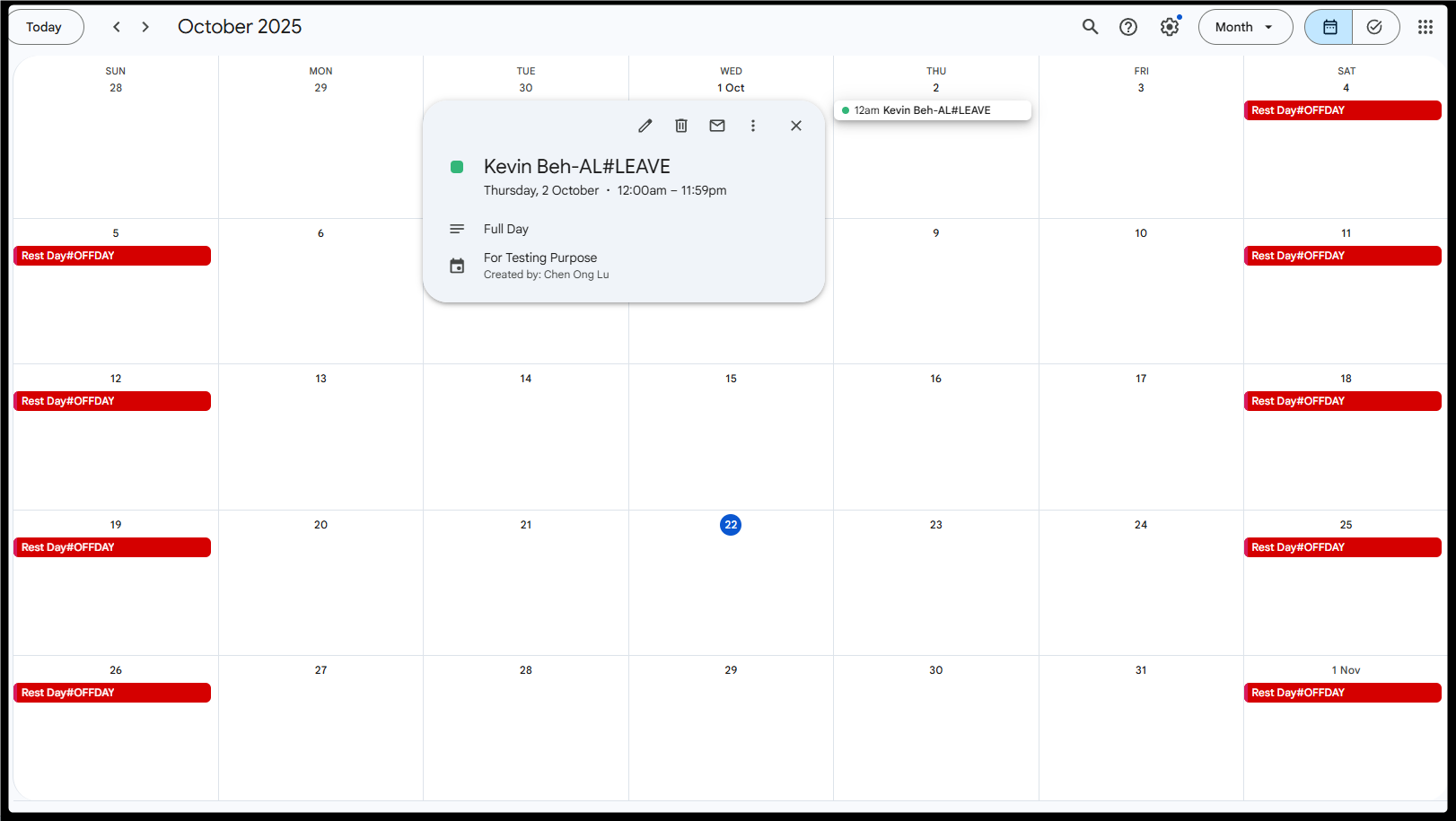
The selected events will appear in your Google Calendar.
B. Sync HRMS Notifications to Google Calendar (Payroll User)
Steps to Synchronise Notifications:
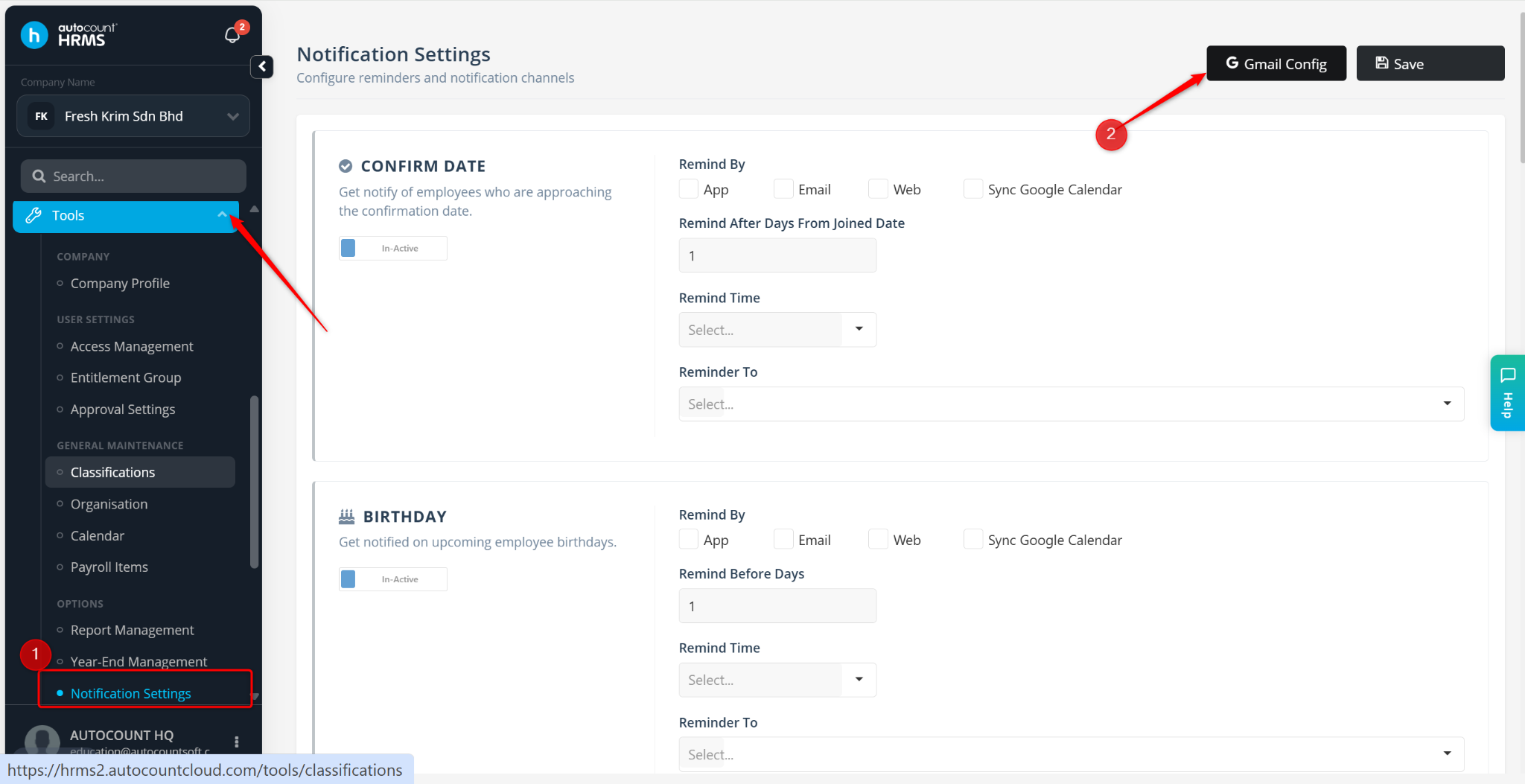
Go to Tools > Notification Setting.
Click Gmail Config at the top-right corner.
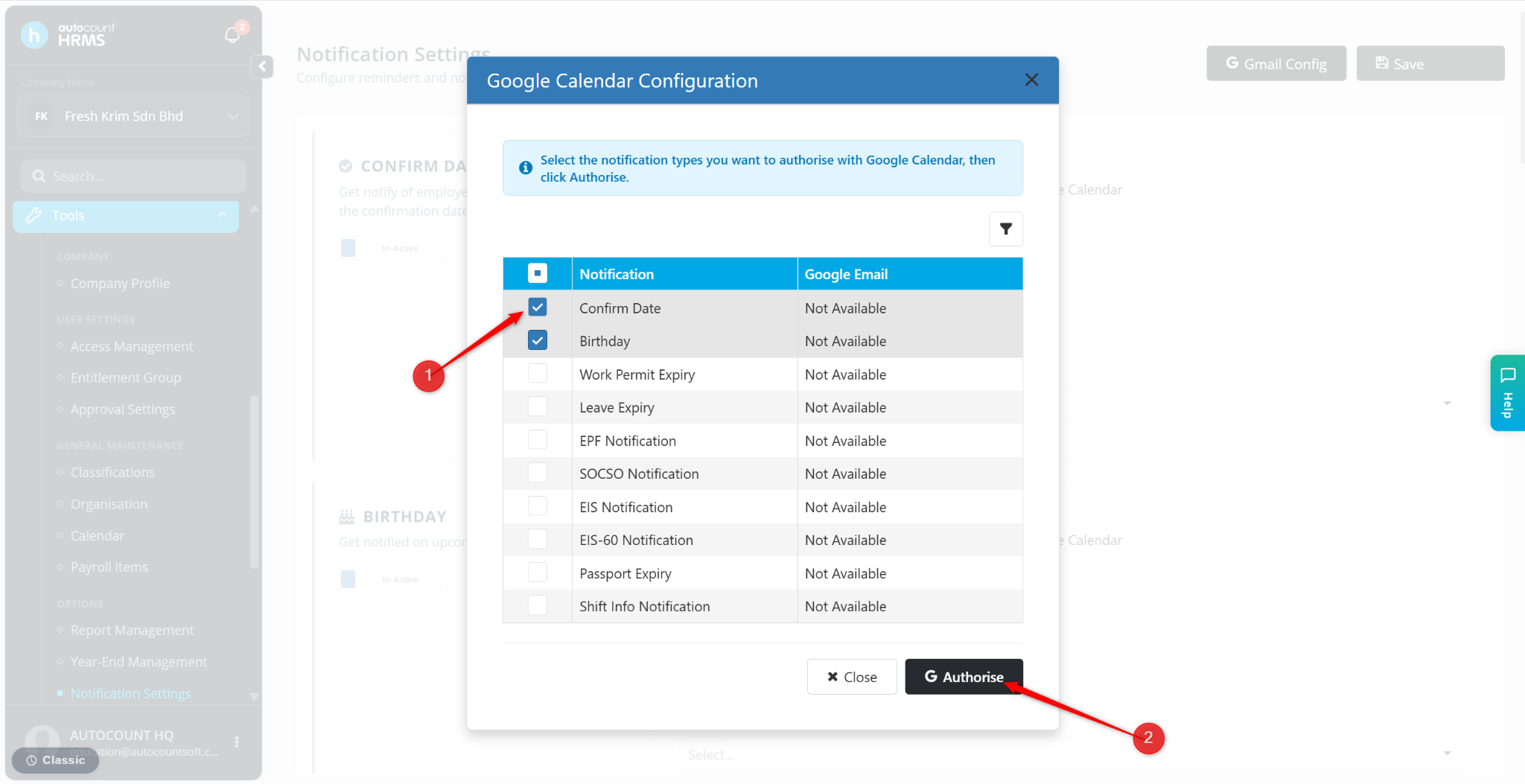
Tick the notification types you wish to synchronise.
Click Authorise.
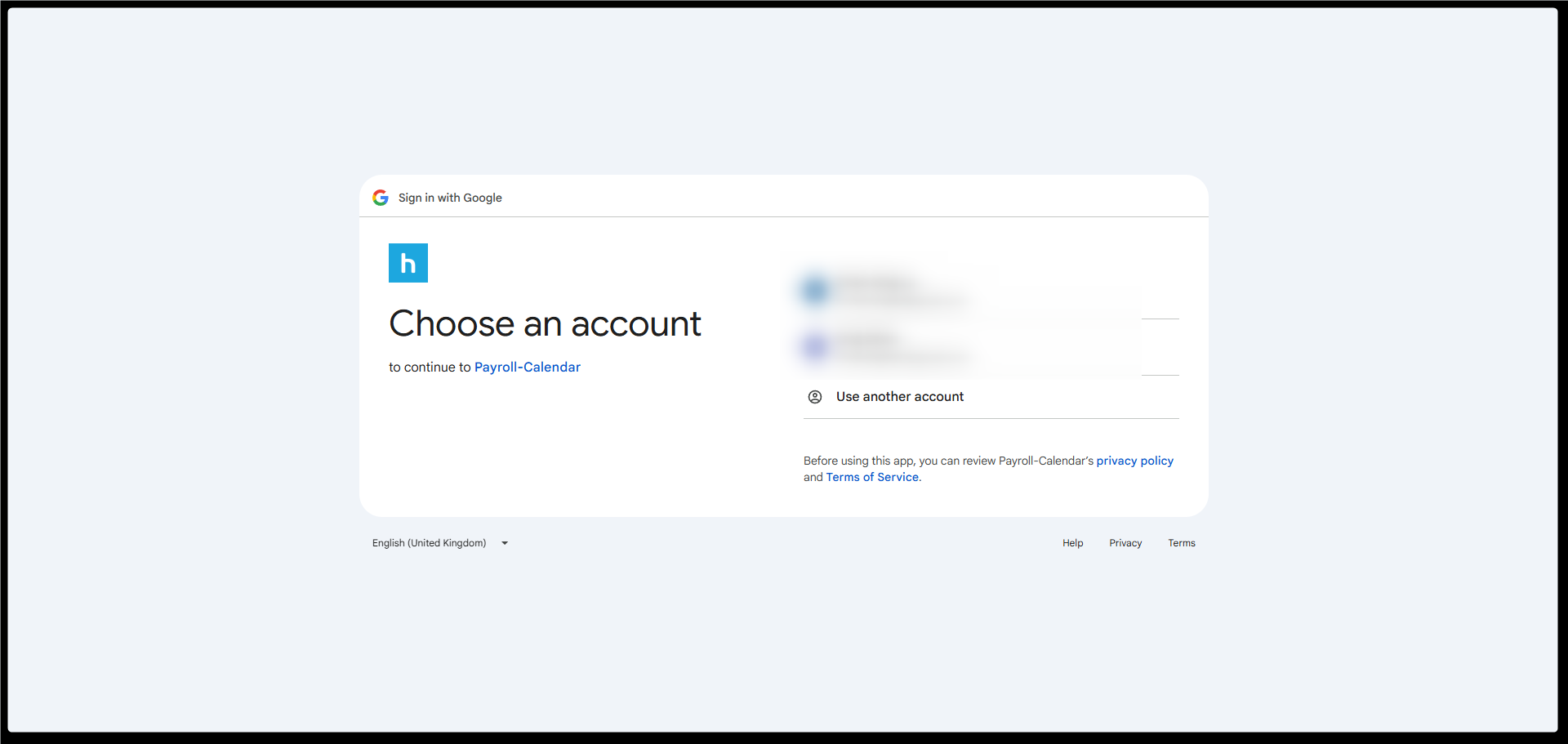
Select your Google account, and grant the required permissions.
The selected notifications will be synchronised automatically.
Notifications will appear in Google Calendar according to the reminder schedule configured in HRMS.
ℹ️ Note: Only calendar events are created in Google Calendar. No Google Calendar reminder alerts are automatically configured.
How It Works
To ensure successful synchronisation:
Ensure Sync Google Calendar is enabled.
Verify the connected Google email account and selected calendar.
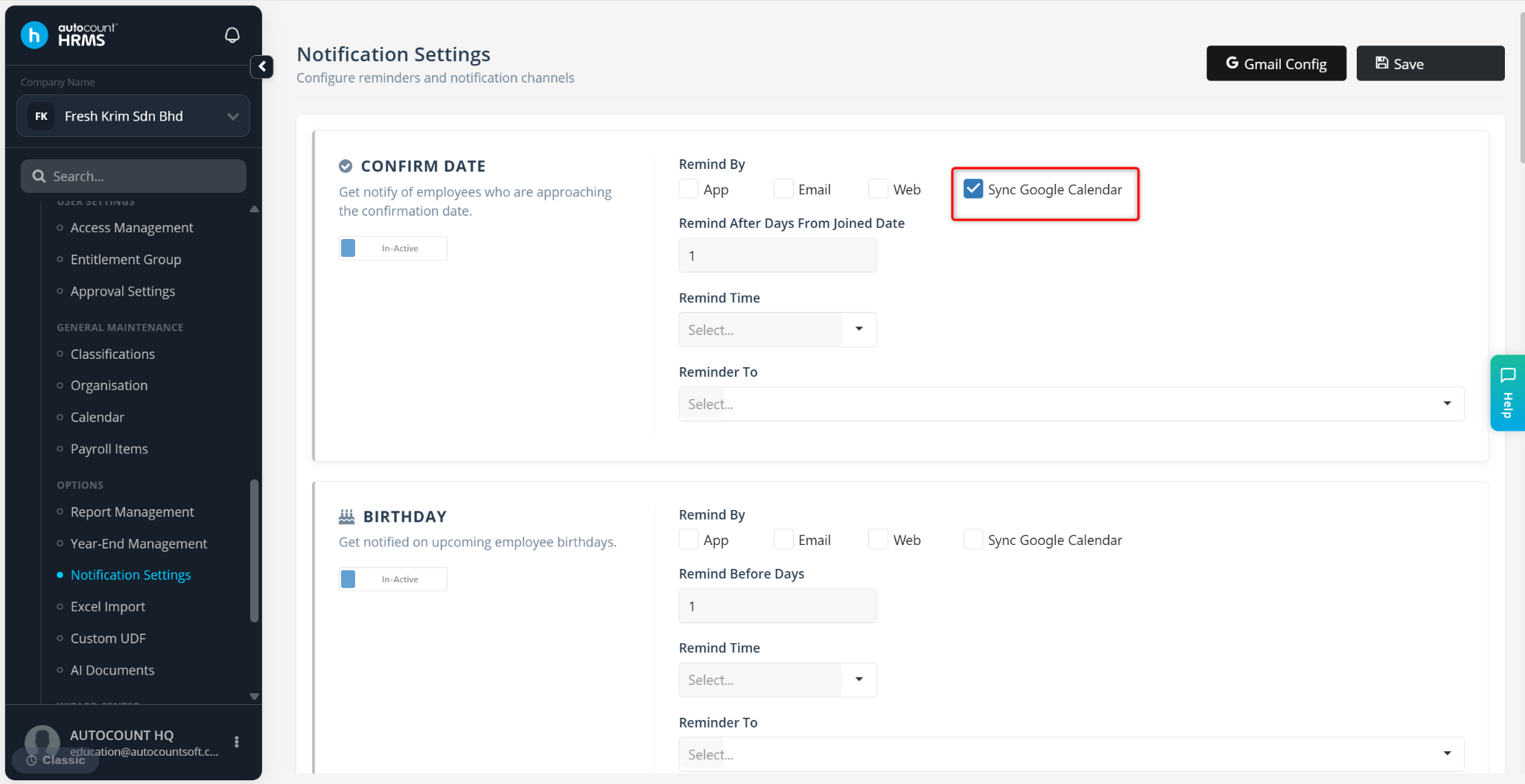
Click Save.
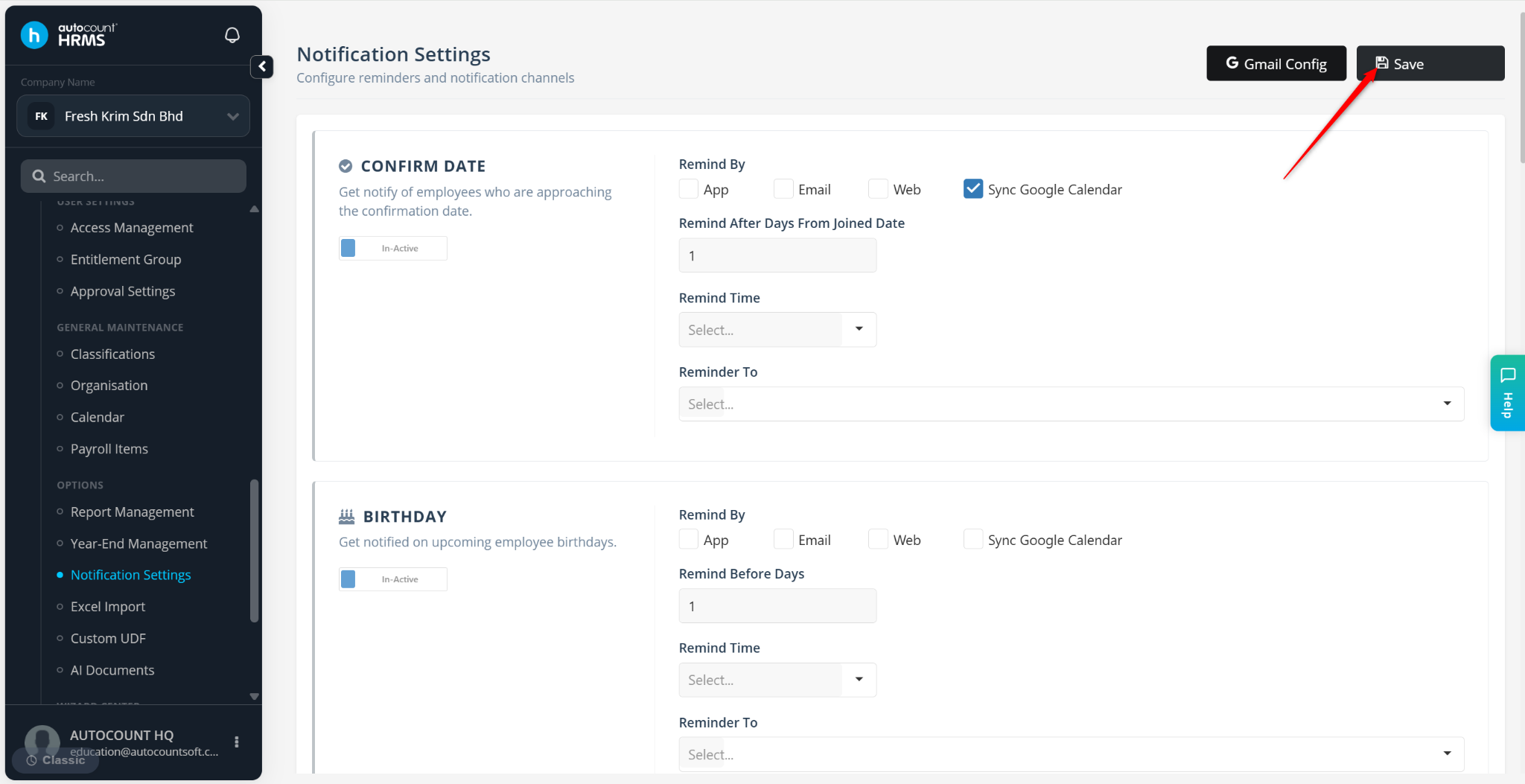
Examples:
Confirmation Date Reminder
Employee Join Date: 18/10/2025
Reminder After Joined Date: 5 days
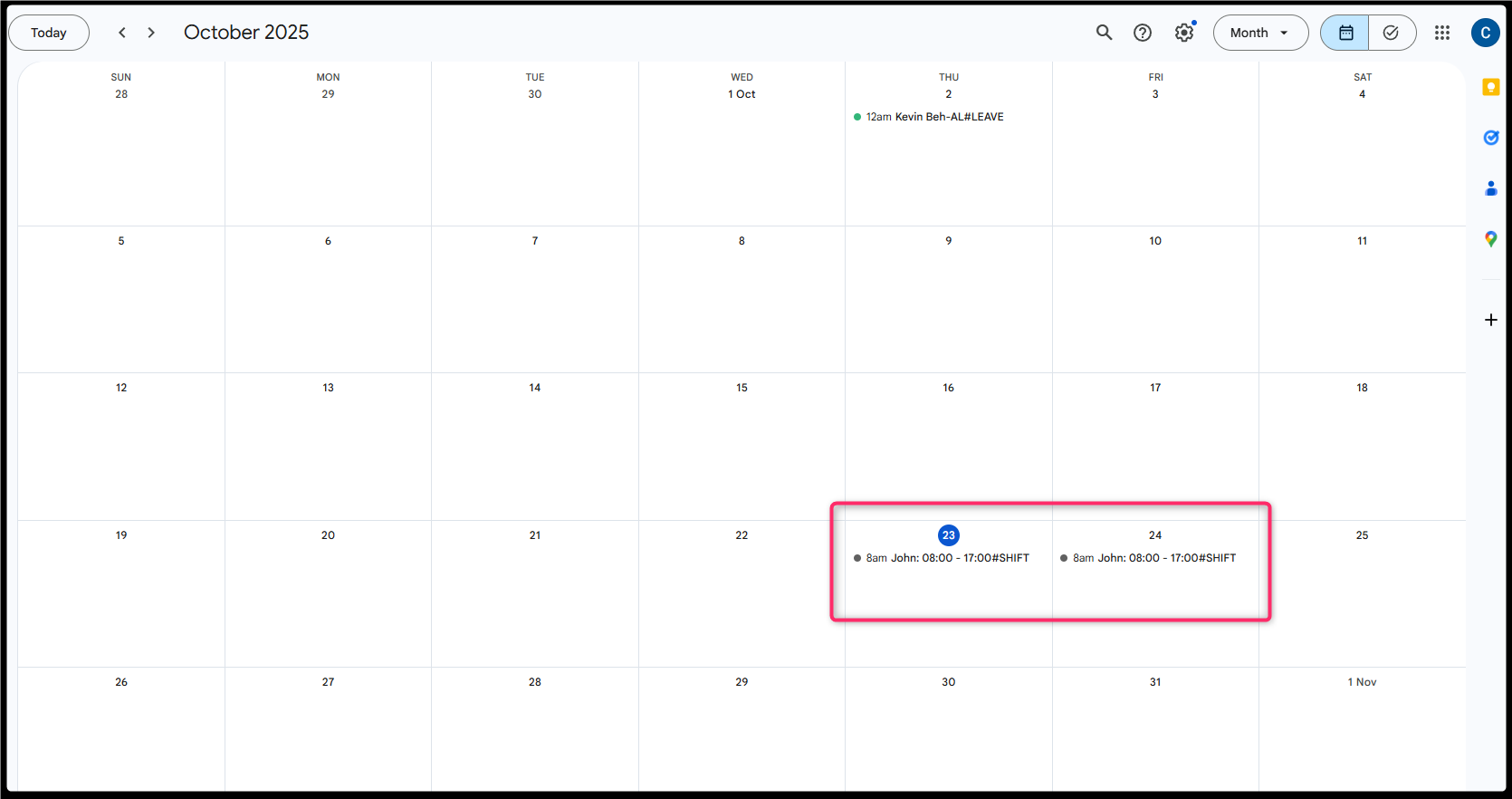
Result: An event will be added to Google Calendar on 23/10/2025.
Birthday, Work Permit Expiry, Leave Expiry, Passport Expiry
Employee Birth Date: 29/10/2000
Remind Before: 6 days
Result: An event will be added to Google Calendar on 23/10/2025.
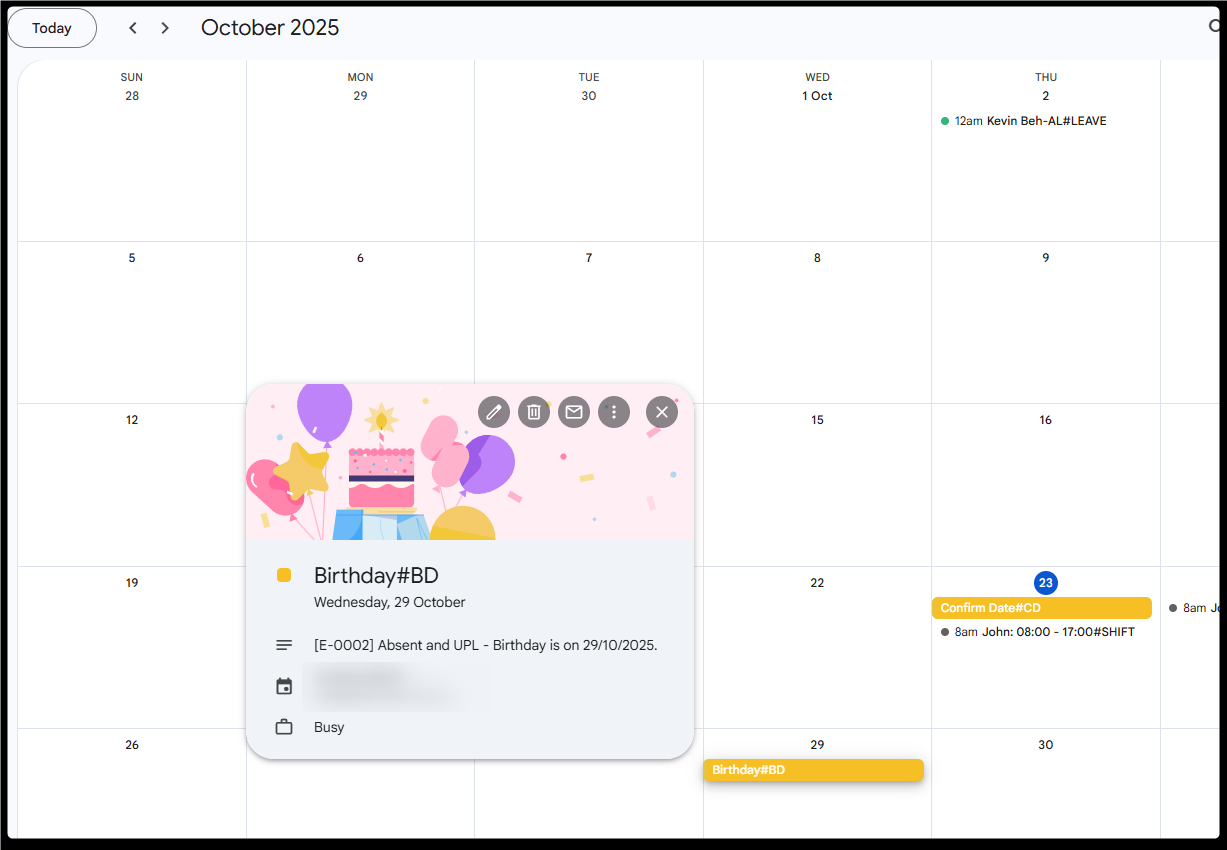
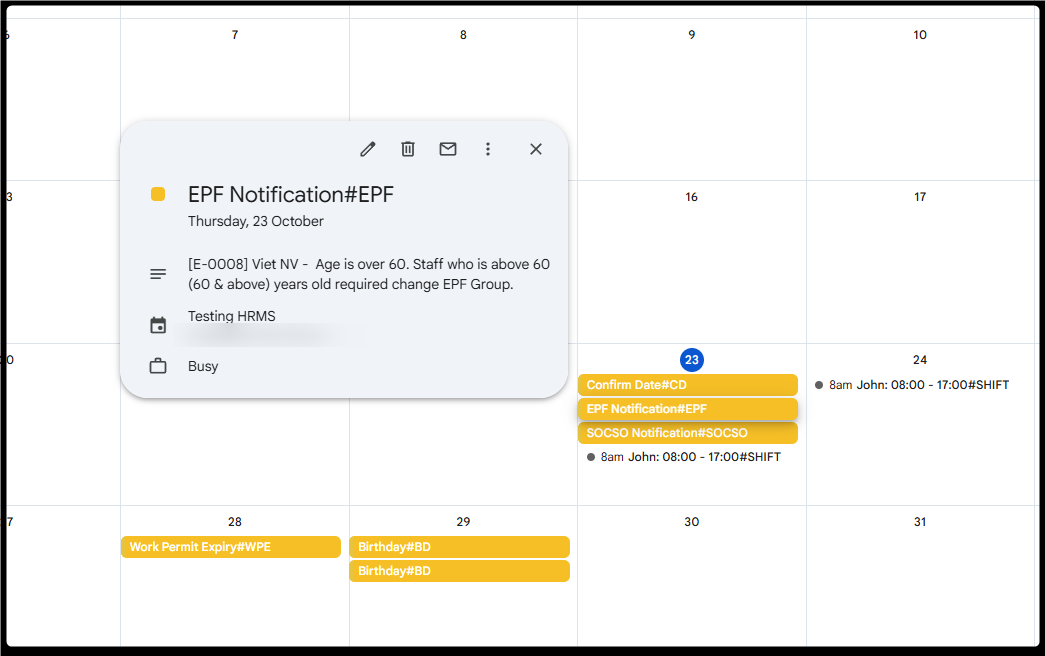
EPF & SOCSO Notifications
Employee Birth Date: 29/08/1960
EPF Category: 11% & 13%
SOCSO Category: Category 1
Result: Google Calendar will display reminders to update EPF and SOCSO categories when the employee reaches age 60.
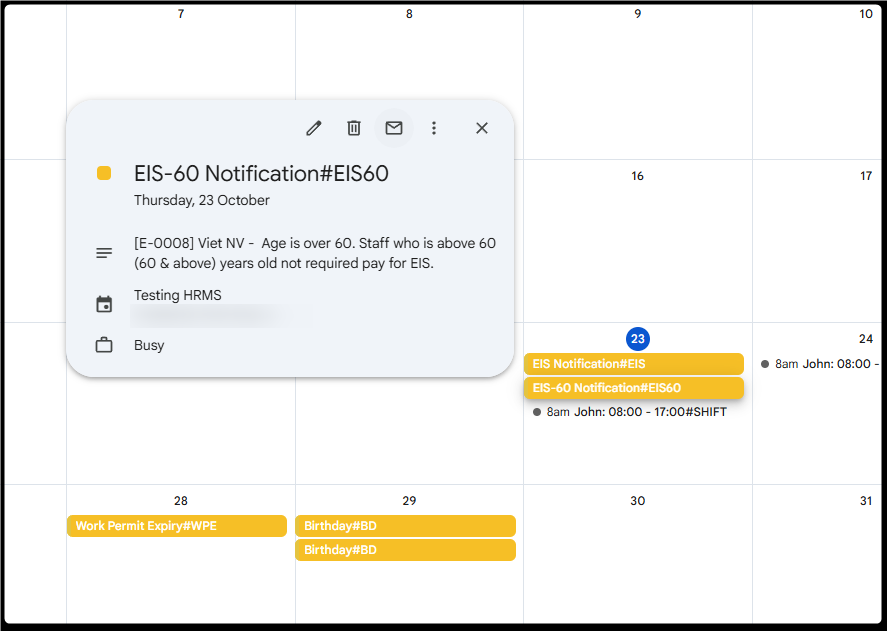
EIS & EIS-60 Notifications
Example:
Employee A: Birth Date 29/10/1960 with EIS enabled
Employee B: Birth Date 29/10/2000 without EIS enabled
Result: Google Calendar will display reminders when employees reach the age threshold requiring EIS contribution updates.
Shift Information Notification
Shift schedules can be synchronised by Branch or Department for a selected duration.
Example:
Synchronisation Duration: 2 days
Employee: Branch A
Result: Google Calendar will display the employee's shift information for the selected 2-day period.
C. Stop Calendar Synchronisation
Steps to Disconnect Google Calendar
Go to your Google Account Security settings.
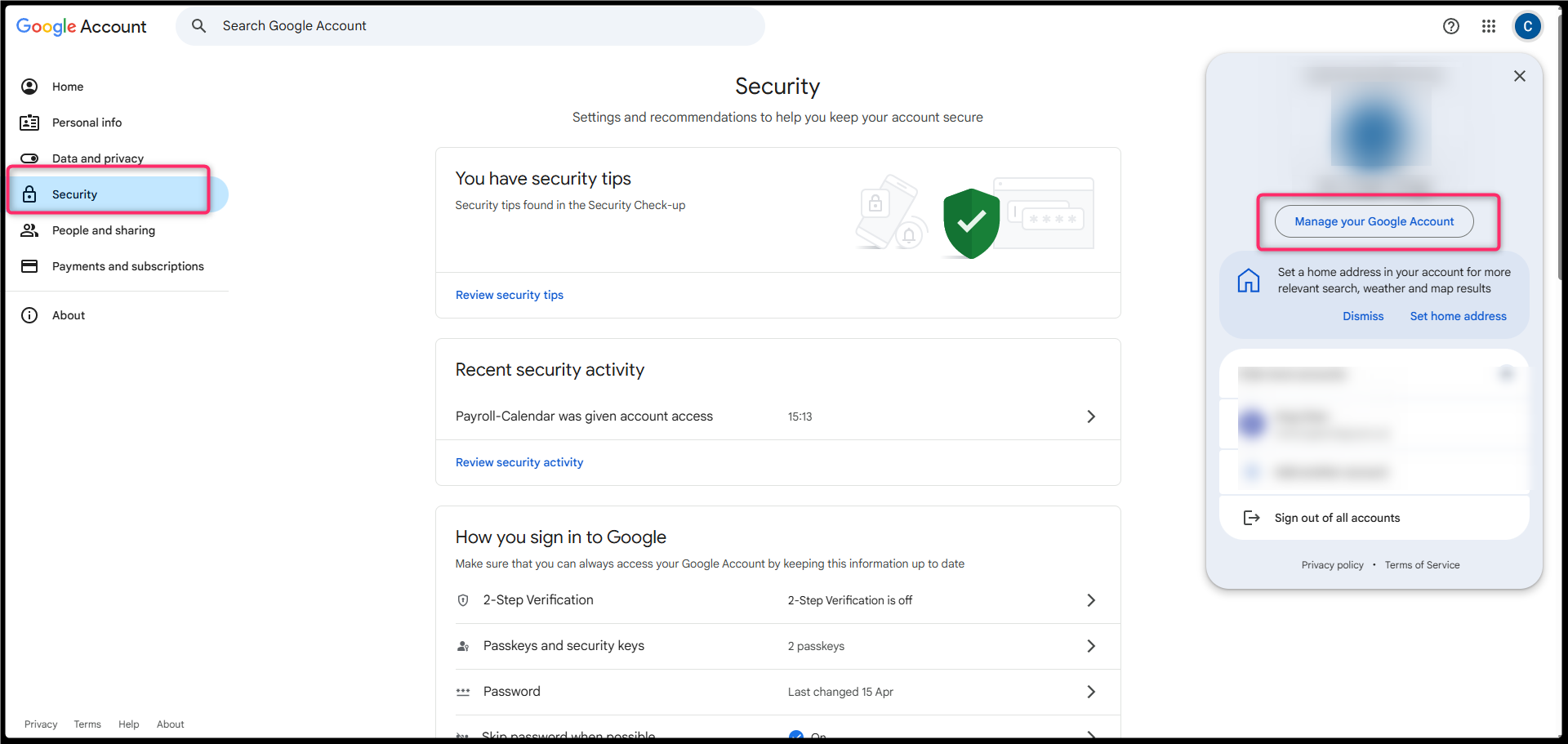
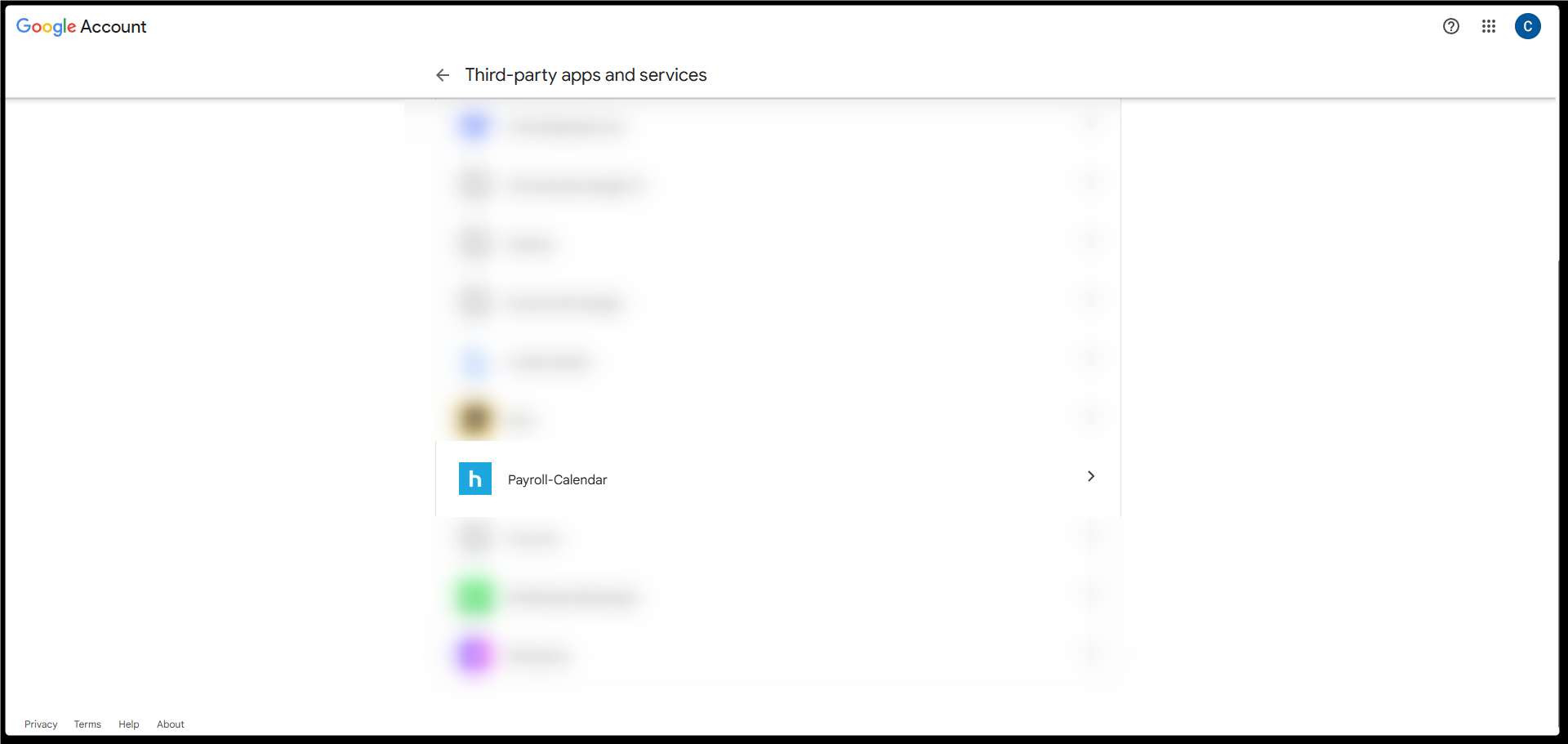
Locate your connections to Third-party apps and services.
Select Payroll Calendar.
Click Delete all connections that you have with Payroll Calendar.
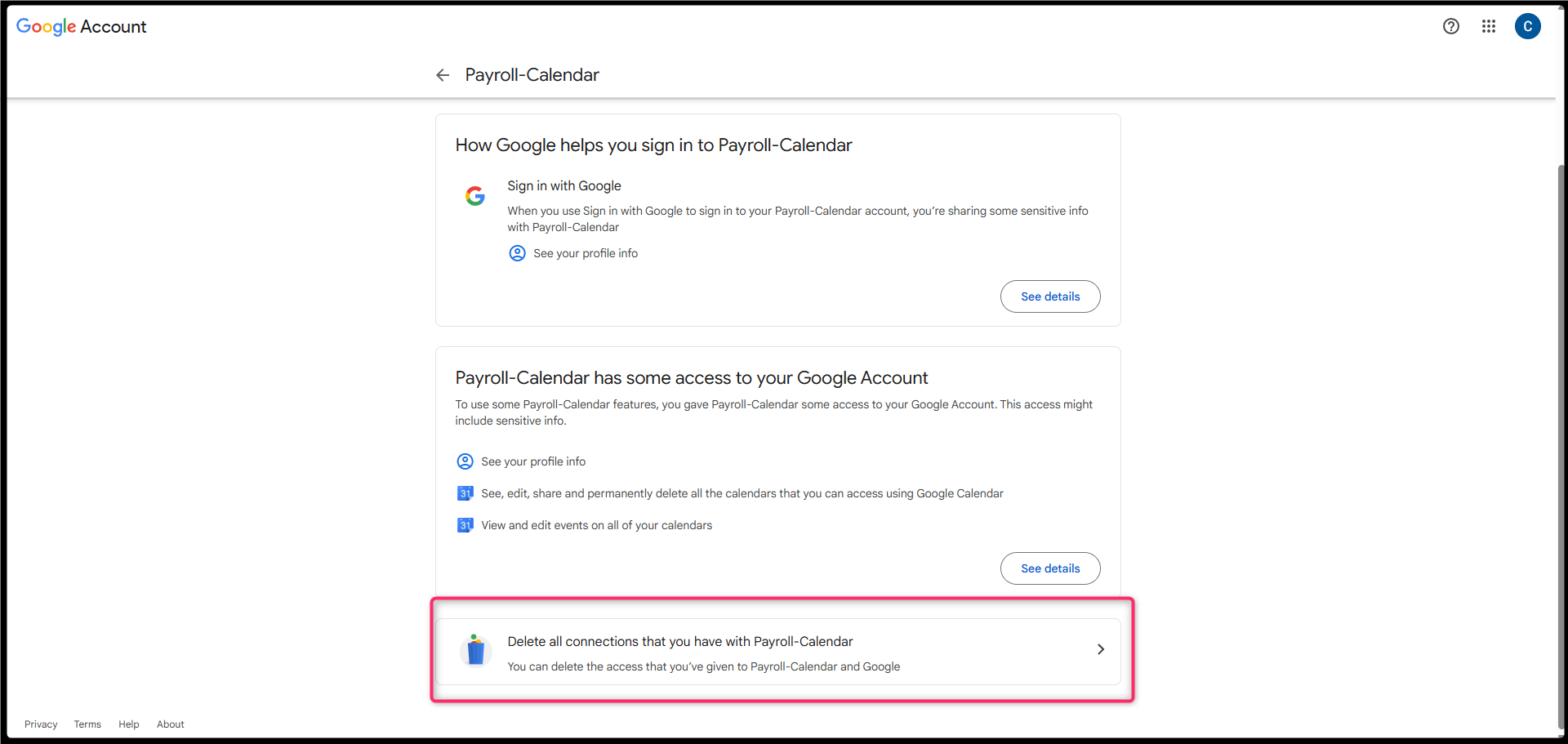
Click Confirm.
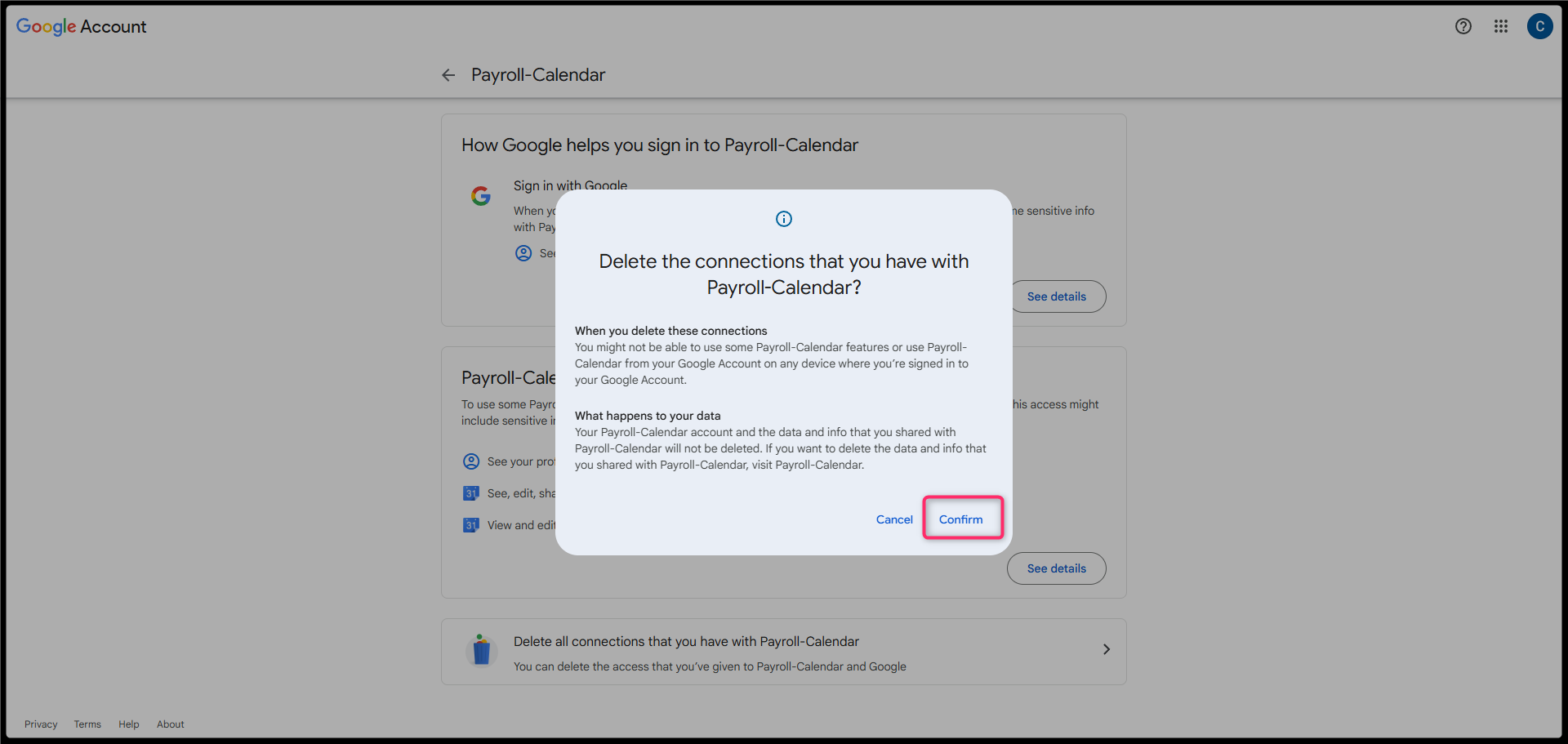
HRMS will stop synchronising new events to Google Calendar.
Note: Existing events will remain in Google Calendar. This process only prevents future events from being synchronised.
ℹ️ Notes:
Ensure your Google account remains connected for continuous synchronisation.
Only authorised HRMS users can activate Google integration.
The system synchronises the next 30 days of data from the selected start date.
Only current and future records are synchronised. Historical entries are not included.
Automatic synchronisation runs once daily at midnight.
If immediate synchronisation is required, click the Sync button manually.
Synchronisation is one-way only: AutoCount HRMS to Google Calendar.
Changes made in Google Calendar will not be reflected in HRMS.
This feature is available for Premium Plan subscribers only.
Written by: ChenOng (20251031)
Reviewed by: Azirah (20251105)