
You can now integrate HRMS calendar information with Google Calendar. This allows leave information, shift schedules, reminders, and important notifications to be added into Google Calendar
This feature allows:
Payroll Users/Managers and Employees can synchronize their events — such as leave days, holidays, rest days, shifts, and to-do lists — with a designated shared Google Calendar.
Additionally, Payroll Users/ Managers can also sync reminders and important notifications to the Google Calendar.
Part A: Sync HRMS Calendar with Google Calendar (Employee/Payroll User)
i. Go to My Calendar
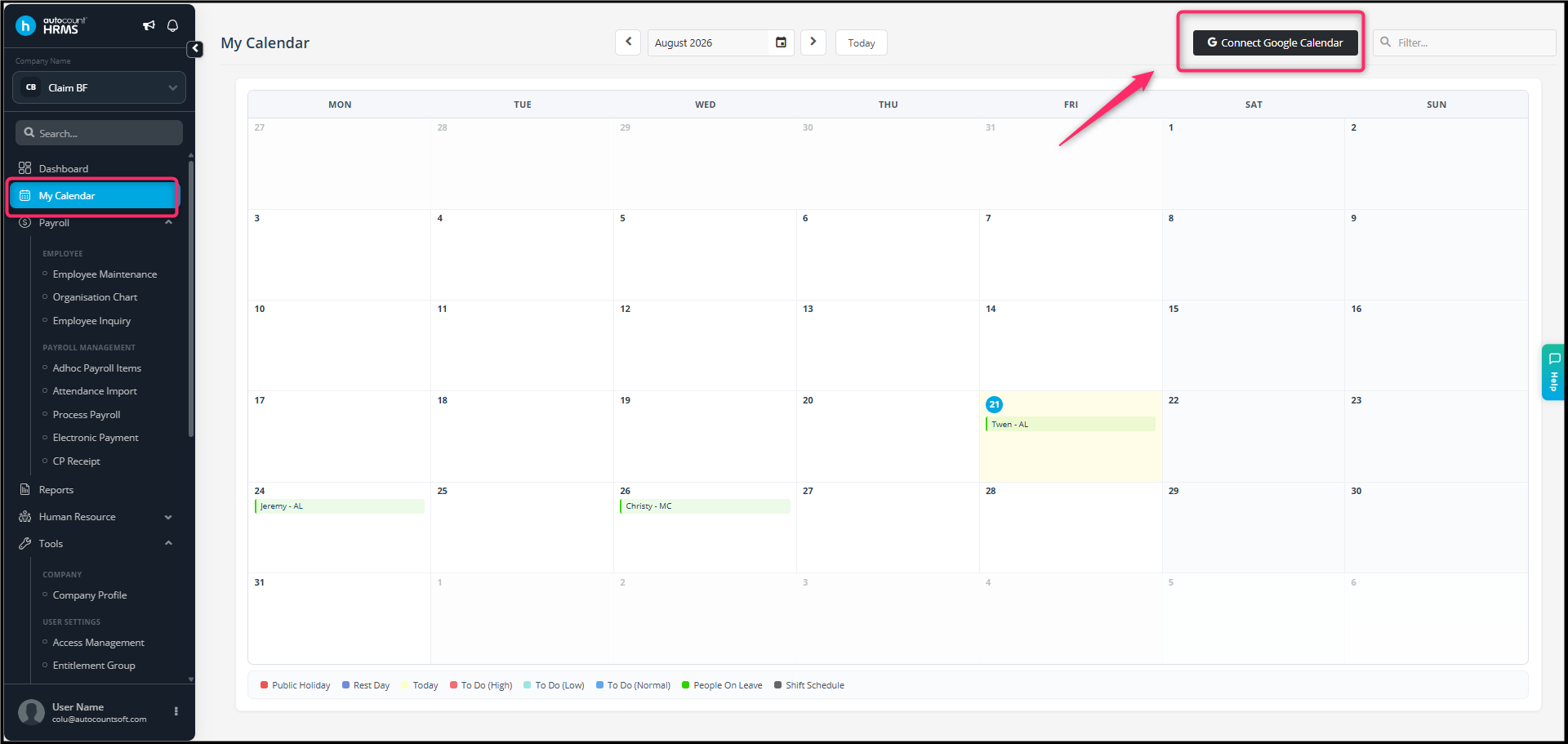
- Log in to your HRMS account.
- From the left navigation menu, select My Calendar.
- Click on the Connect Google Calendar button at the top-right corner.
ii. Add Your Google Account
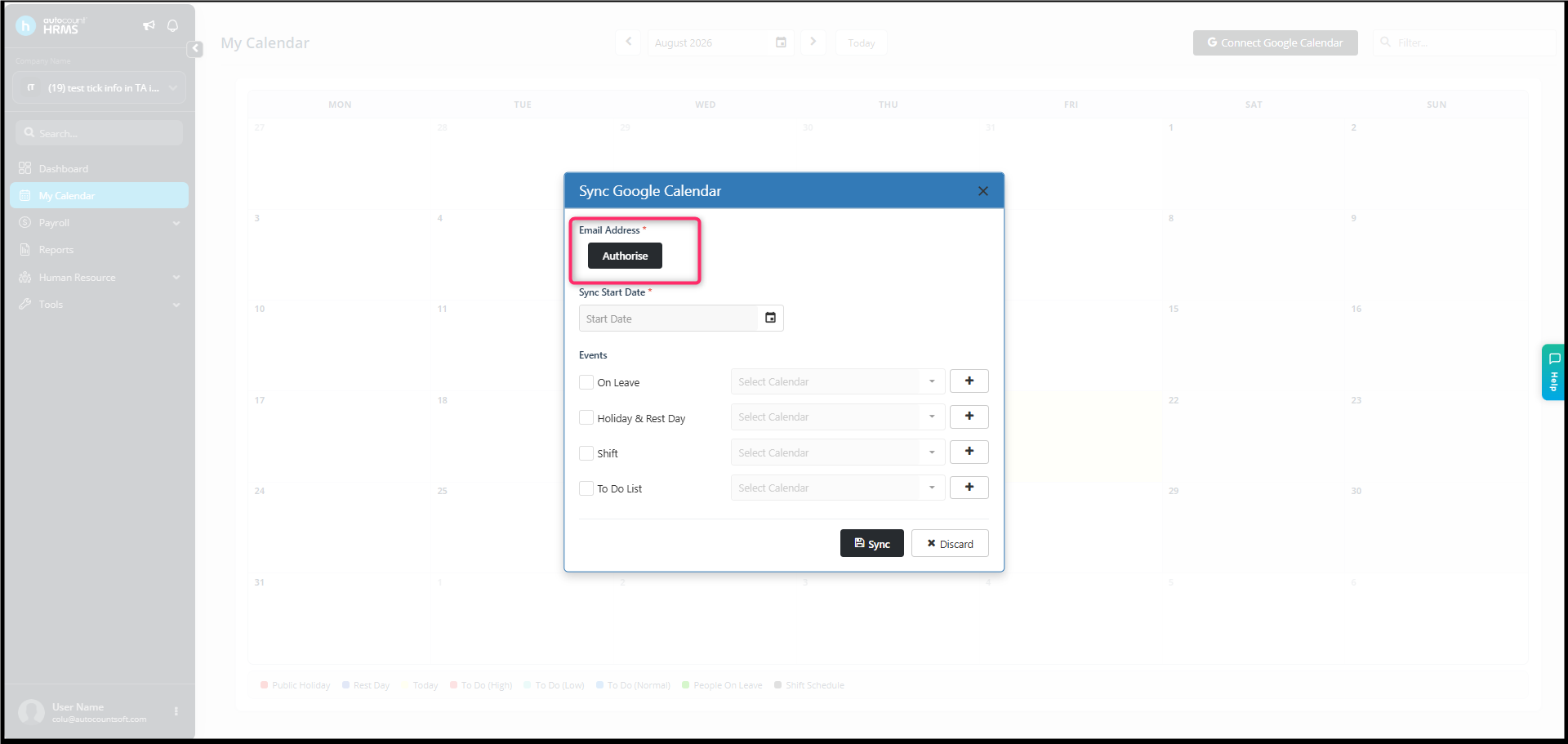
- In the pop-up window titled Sync Google Calendar, click Add Email.
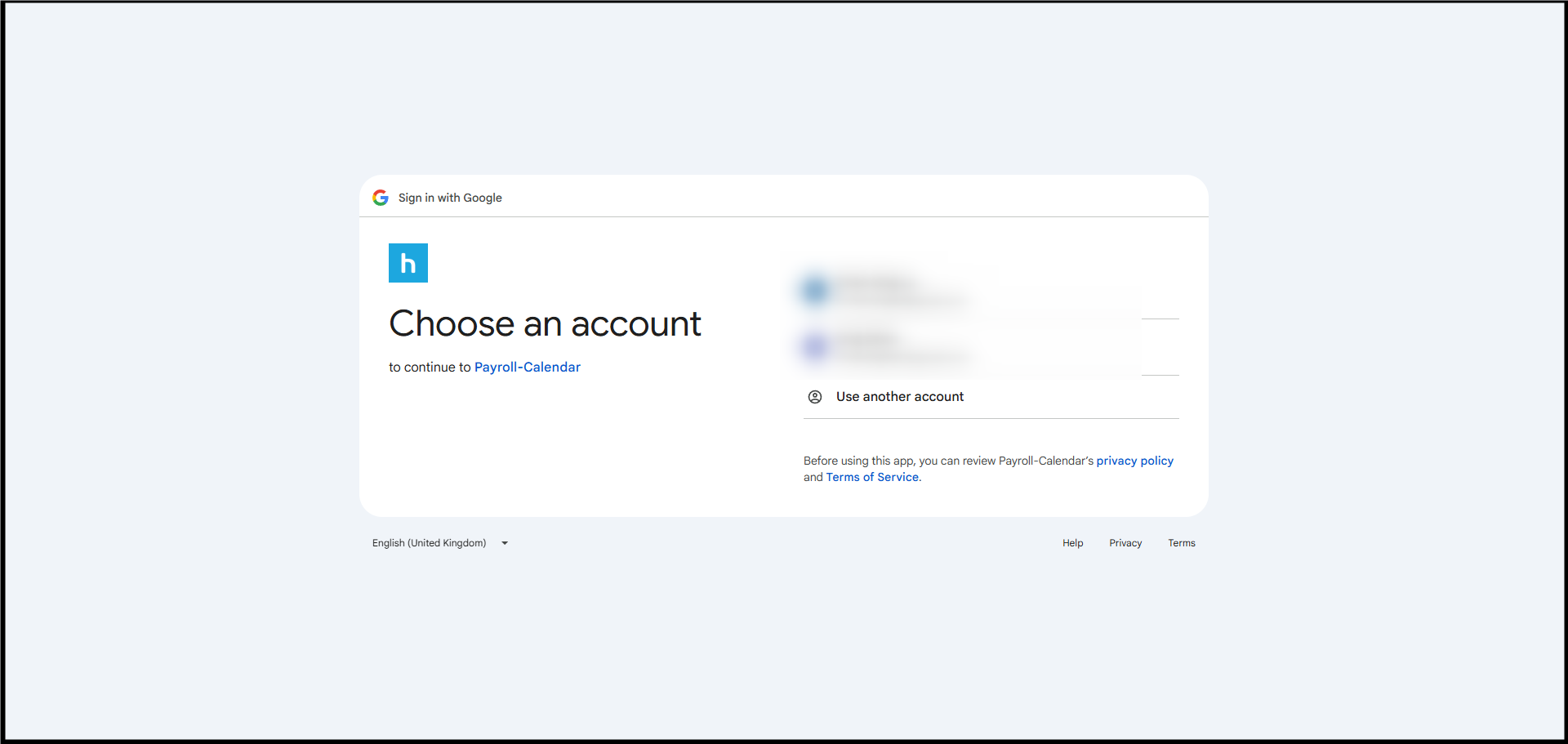
- A Google login page will appear — sign in with your Google account and allow access permission.
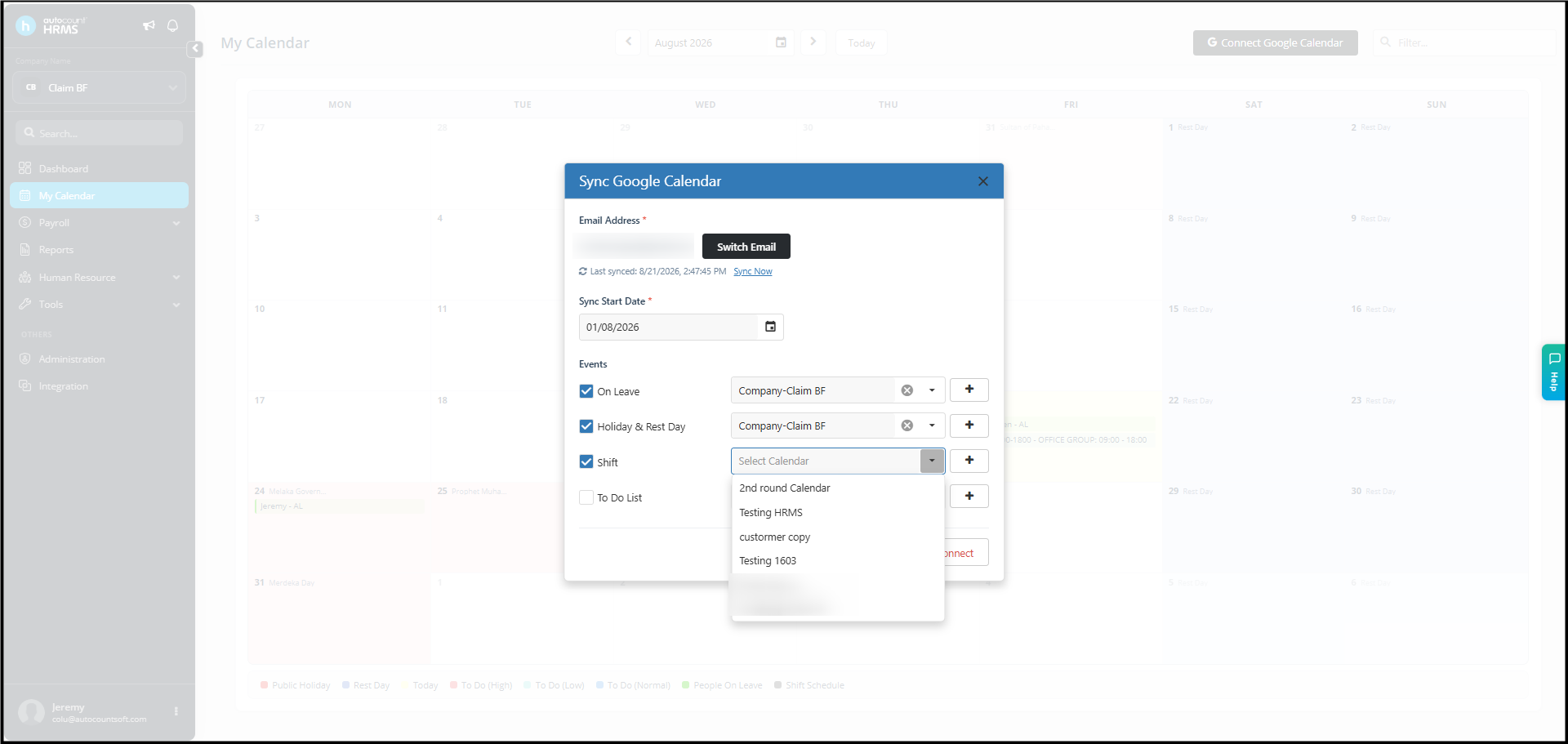
- Once connected, your email address will appear in the Email Address field
iii. Select Start Date
- Choose the Start Date from which your HRMS calendar events should begin syncing to your Google Calendar.(Example: Select 1 Oct 2025 if you want to sync events from October onward.)
iv. Choose Event Types to Sync
Tick the boxes for the type of events you wish to sync:
| Event Type | Description |
| On Leave | Sync approved leave dates. |
| Holiday & Rest Day | Sync company holidays and rest days. |
| Shift | Sync work shift schedule. |
| To Do List | Sync assigned to-do tasks. |
v. Sync Events
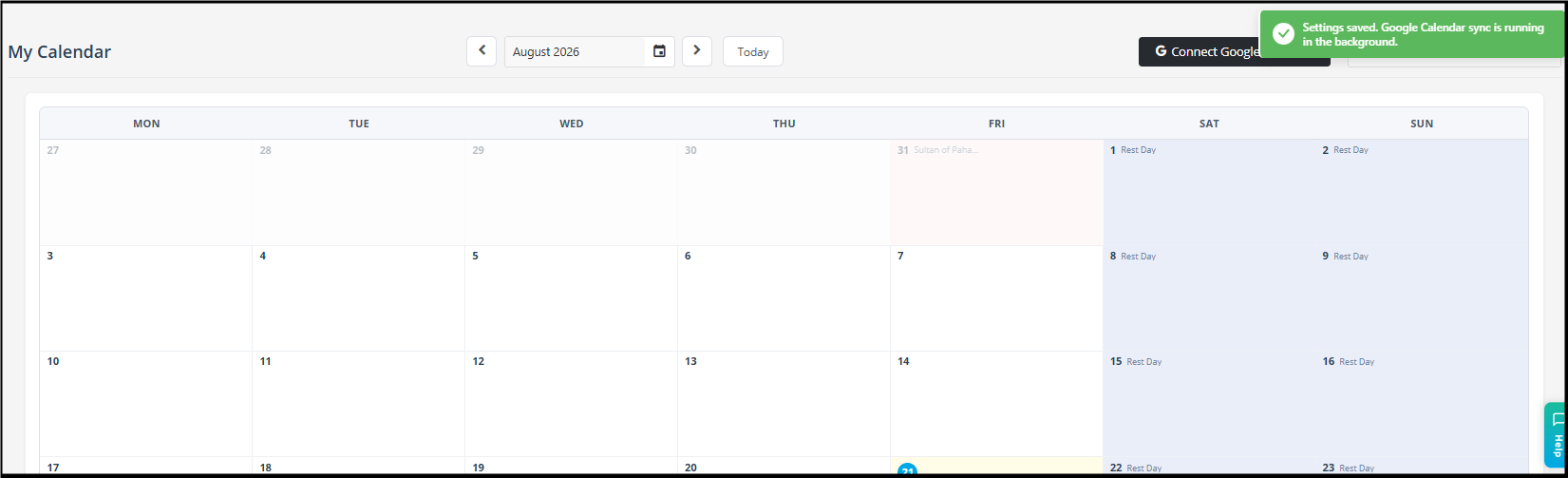
- After you’ve selected the event types and calendars, click Sync.
- Wait for the system to process — once completed, your selected events will appear in your Google Calendar.
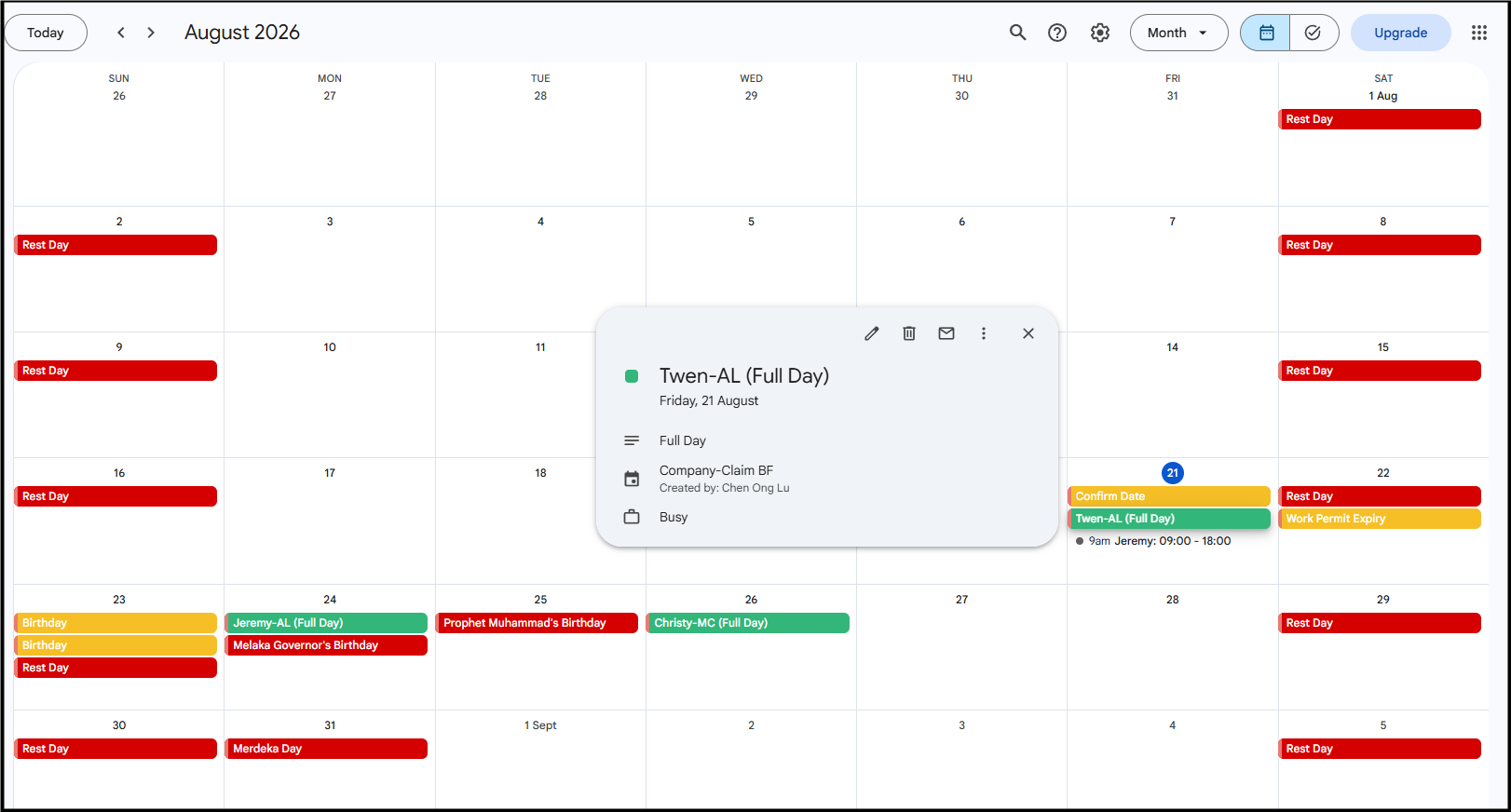
Part B: Sync HRMS Notifications to Google Calendar (Payroll User)
i. Go to Notification Settings
Tools > Notification Setting. Click on the Google Configuration button (top-right).
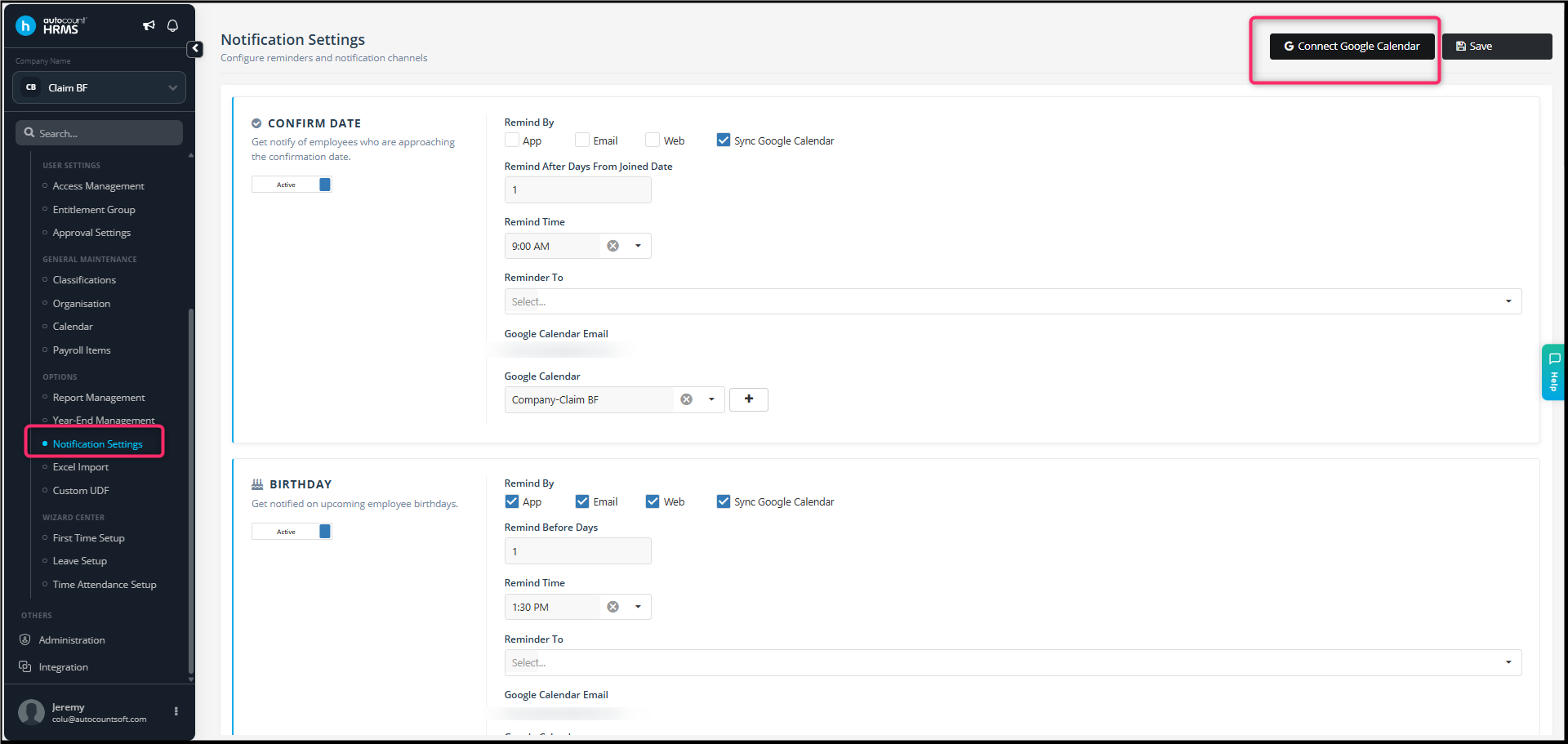
ii. Authorize Google Integration
- A Google Account Configuration pop-up will appear.
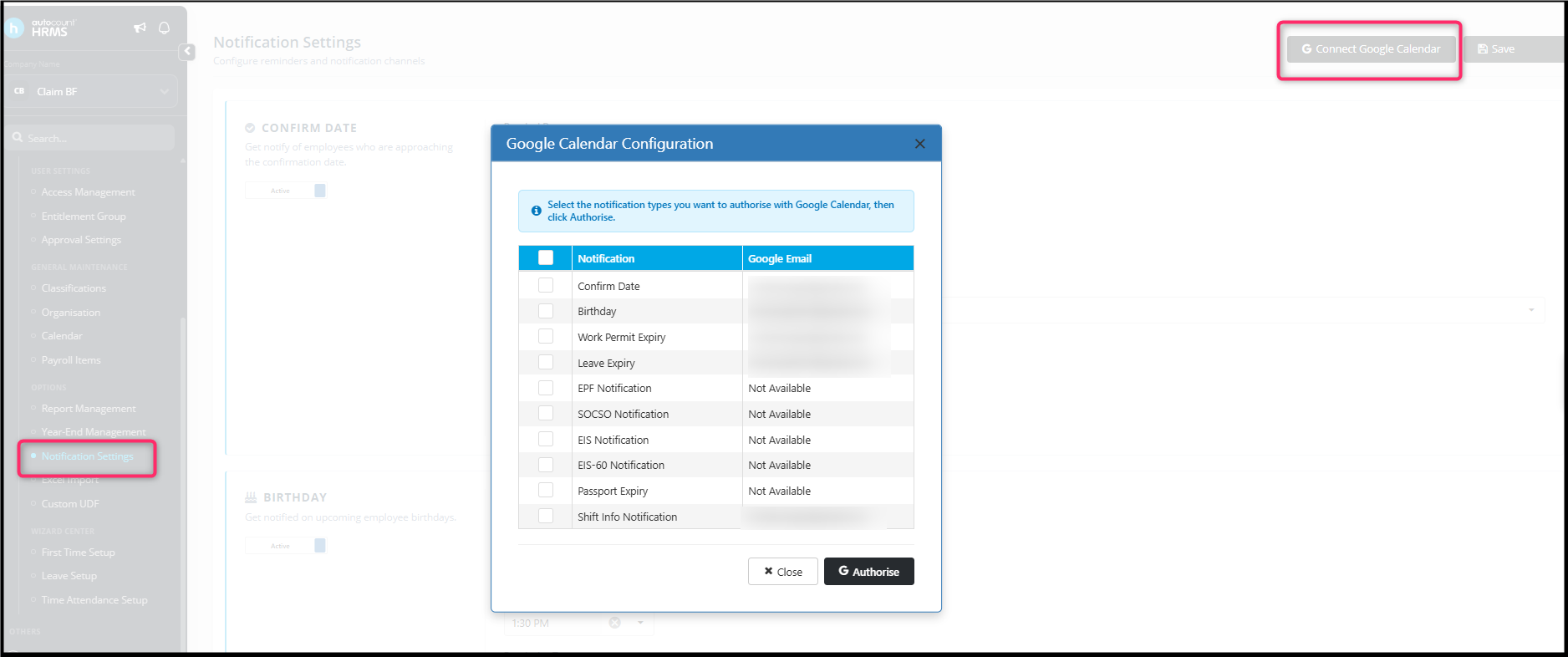
2. Tick the notifications type you want to sync to your Google Calendar.
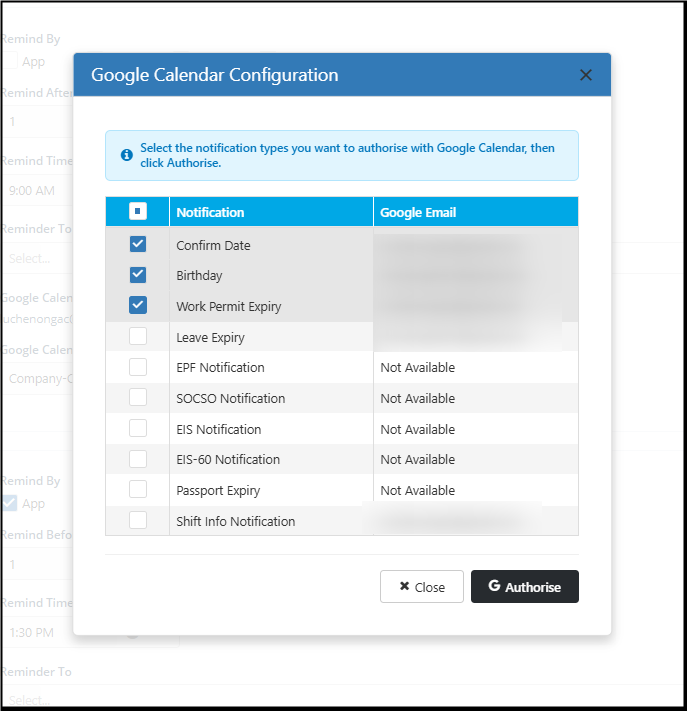
3. Click Authorize and select your Google account to grant permission, once authorized the selected notifications will be sync with your Google Calendar.
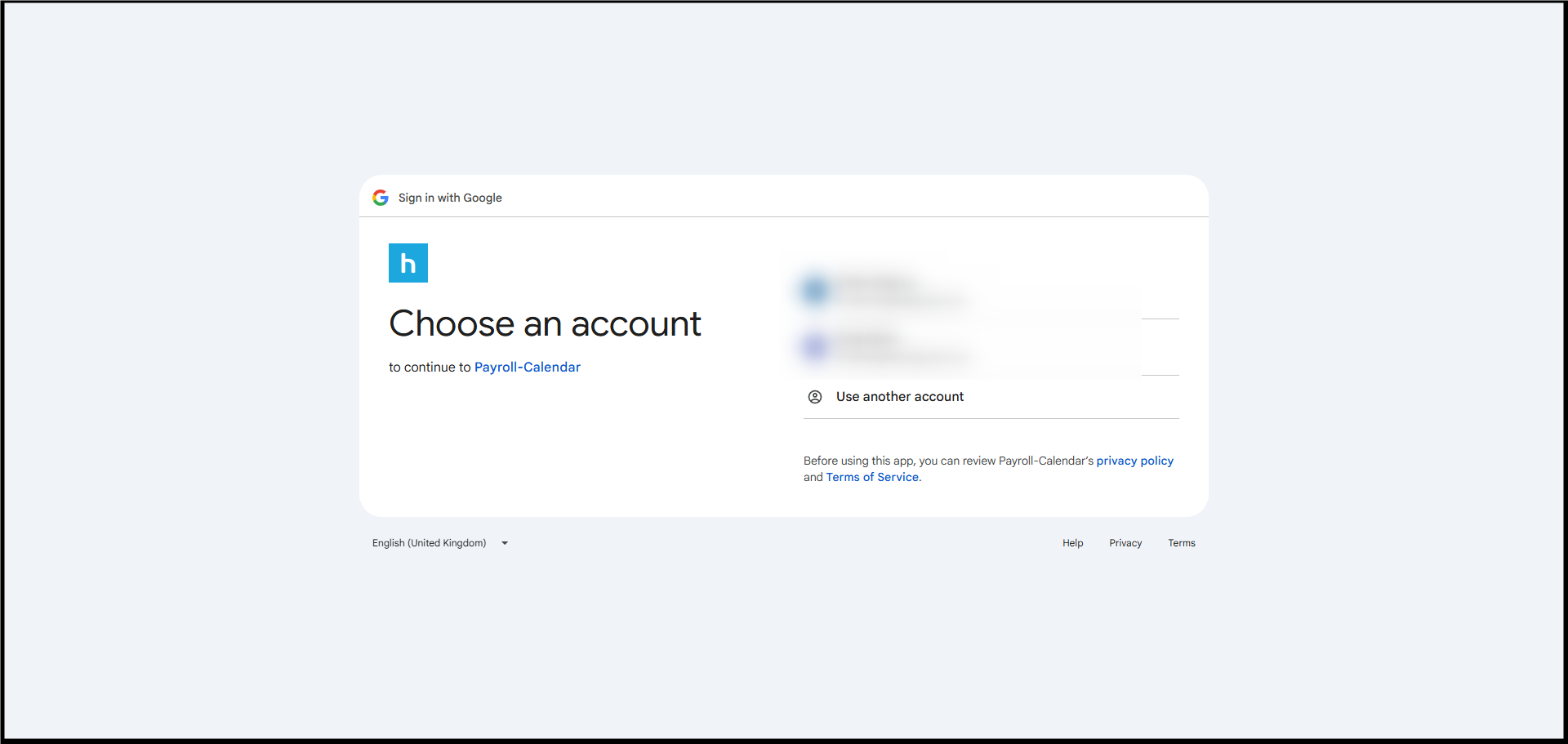
iv. How It Works
Notifications will appear on Google Calendar based on the time scheduled in HRMS. However, no reminders will be configured on the Google Calendar, only an event.
1. Ensure “Sync Google Calendar” is checked, Google Email is displayed correctly and select the Google calendar to be sync. Google calendar will show the event based on the remind date and time.
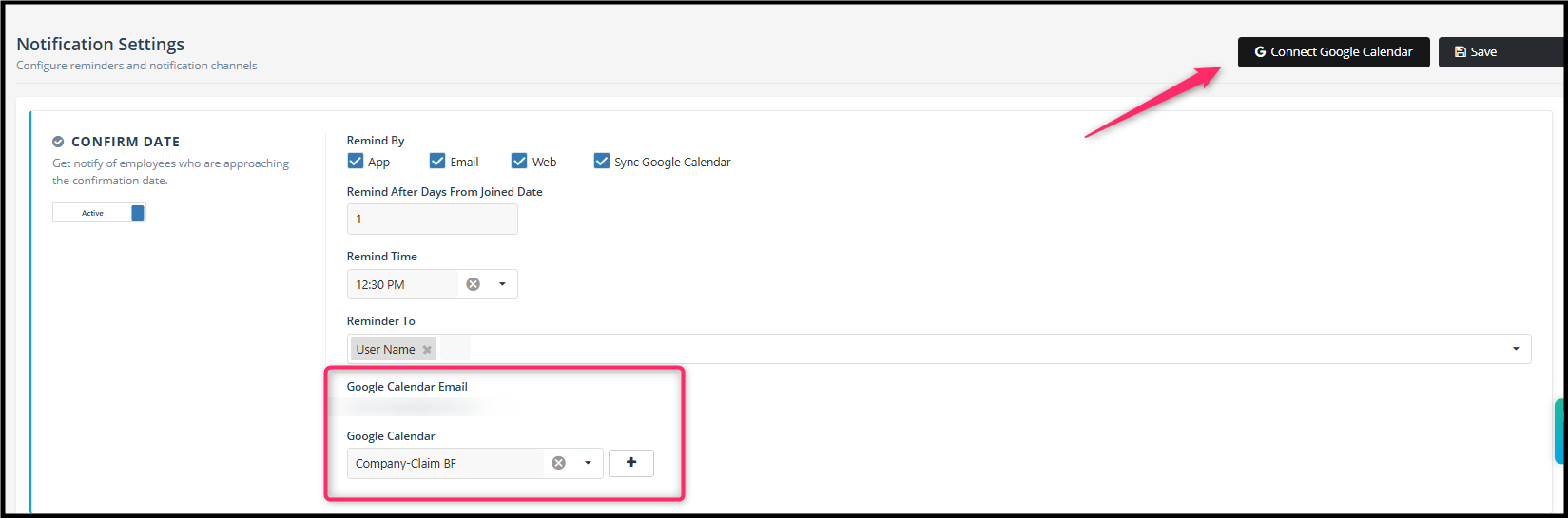
2. Click Save to save the changes.
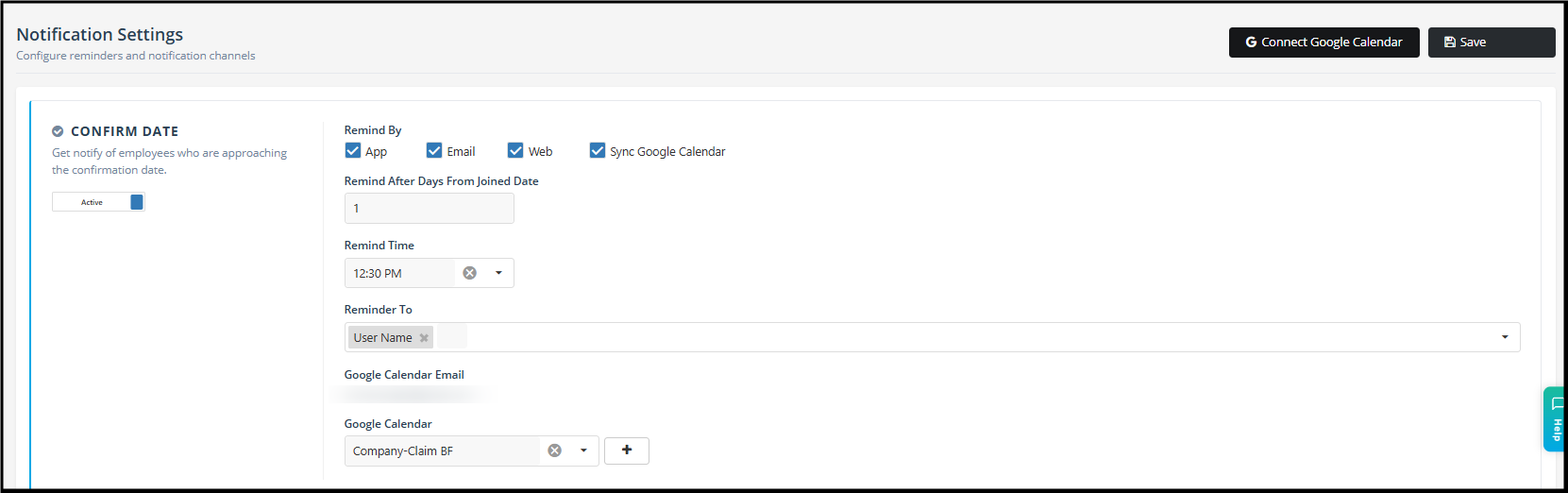
3. Examples:
i. Sync Confirm Date reminders
Set Employee Join Date: 18/10/2025
Remind after No. of Day from Joined Date: 5
The event will be added to the Google Calendar on 23/10/2025, based on the reminder of 5 days after.
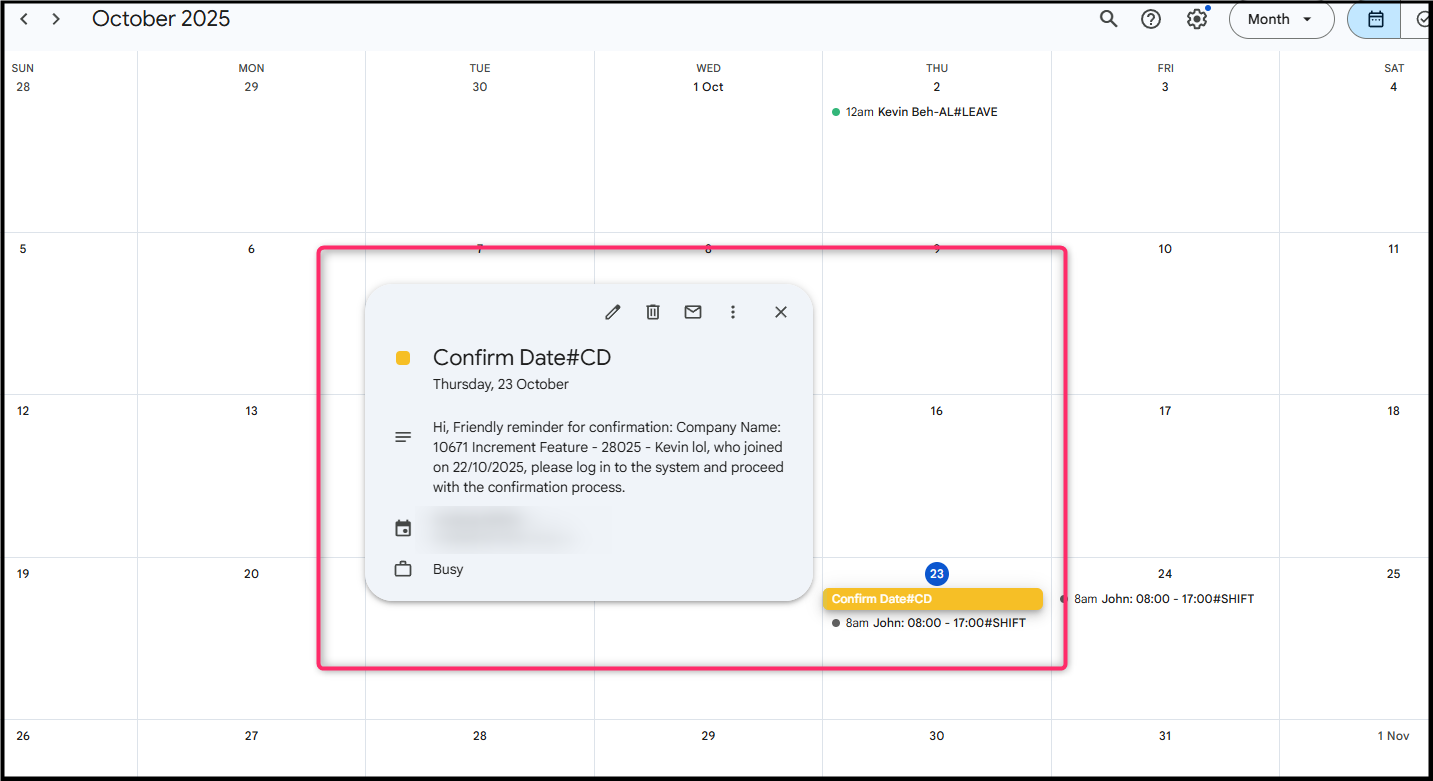
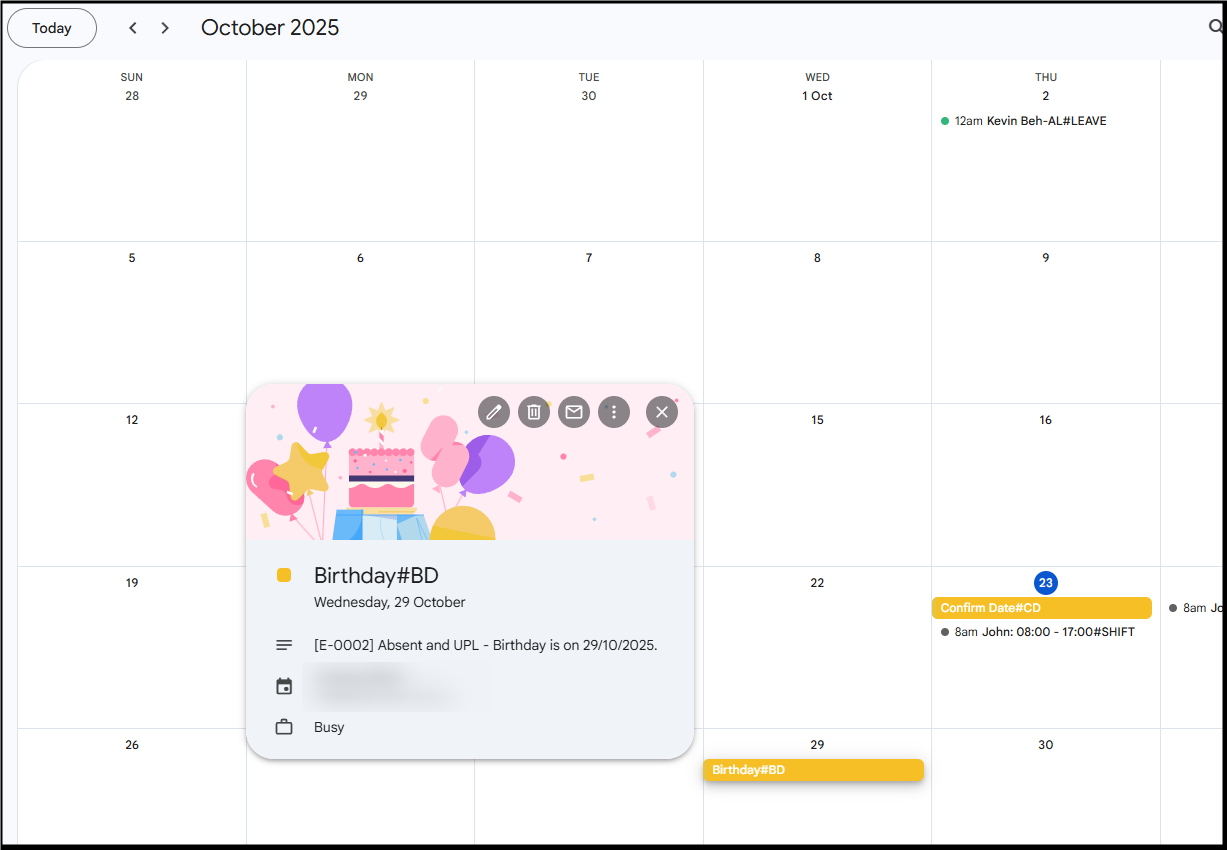
ii. Birthday, Work Permit Expiry, Leave Expiry, Passport Expiry
Set Employee Birthdate: 29/10/2000
Remind Before (Days): 6
Event will be added on 23/10/2025 to Google Calendar, 6 days before the event.
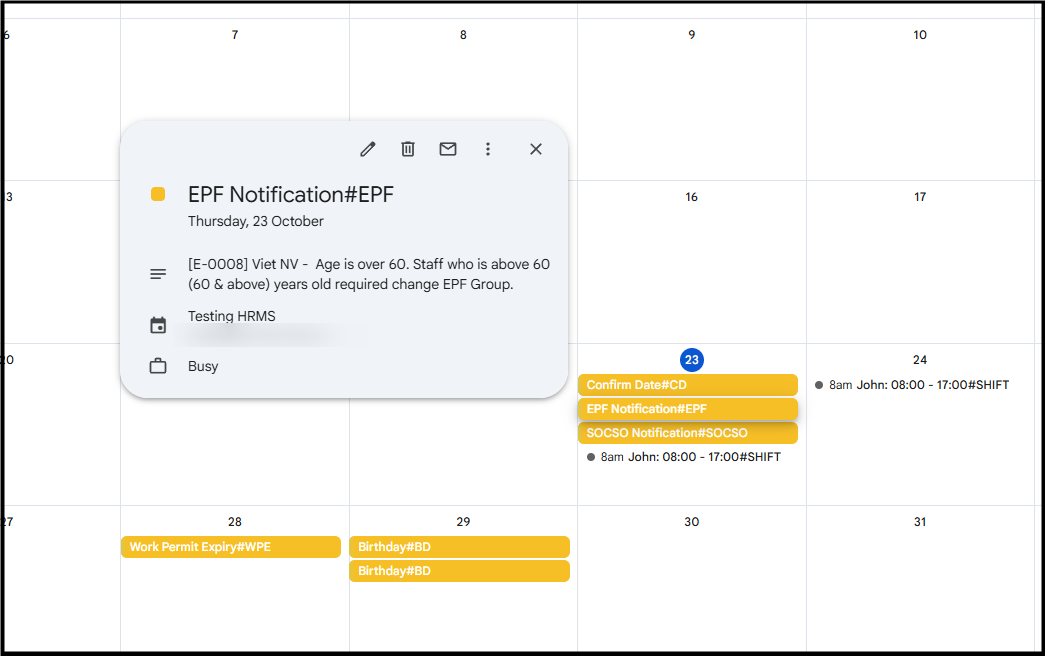
iii. EPF Notification and SOCSO Notification
Set Employee Birthdate: 29/08/1960
EPF Category: 11% and 13%
SOCSO Category: Category 1
Google Calendar will display events containing information of employees that requires updating of EPF and SOCSO category upon reaching the age of 60.
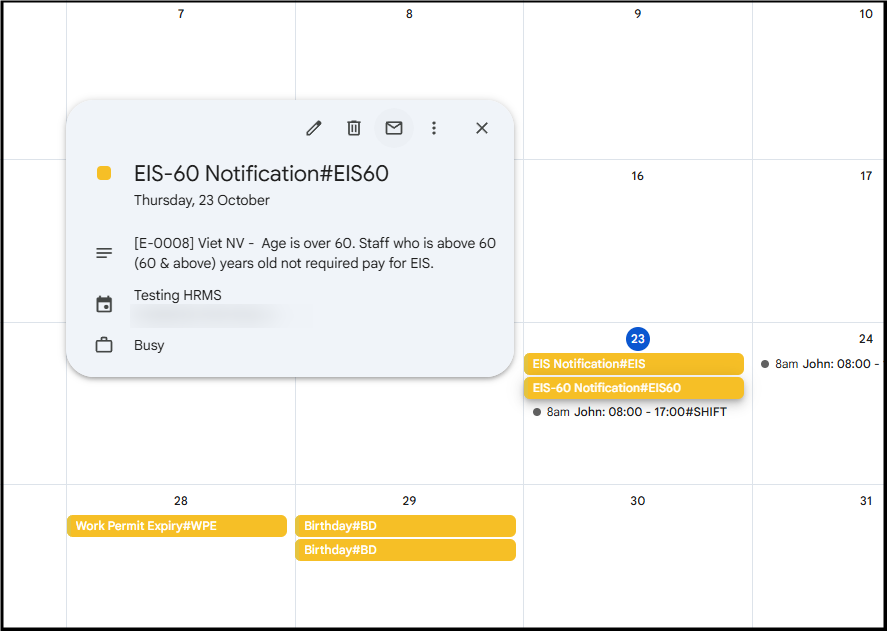
iv. EIS and EIS-60 Notification
Set Employee Birthdate:
29/10/1960 with EIS is tick
29/10/2000 without EIS is tick
Google Calendar will display information of employees that are required to update EIS contribution rates when they reach the age limit.
iv. Shift Info Notification
Shift information can be Sync according to their assigned Branch or Department and duration.
Example:
Set Duration to be sync: 2 Days
Employee: Branch A
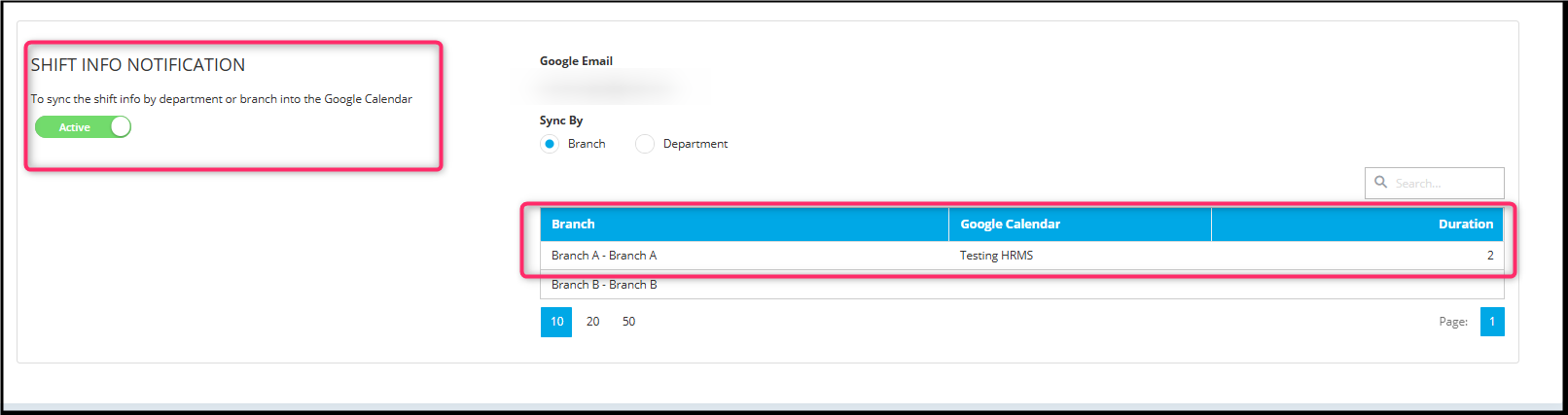
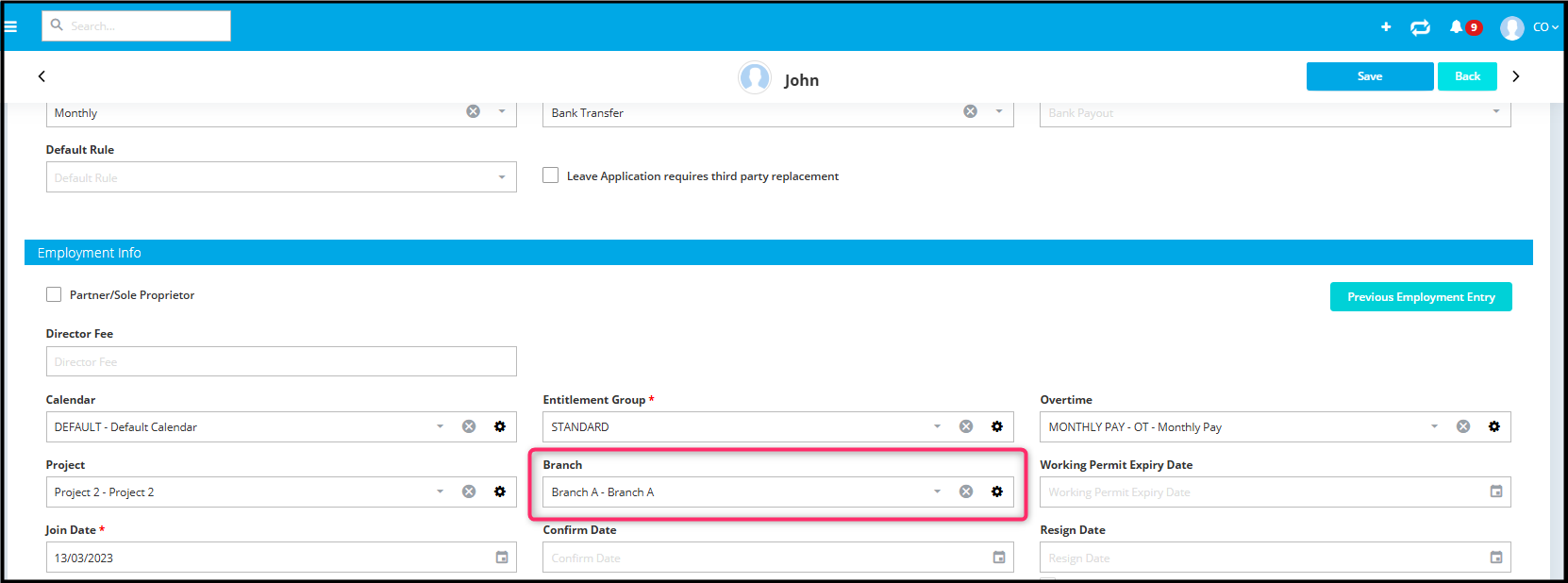
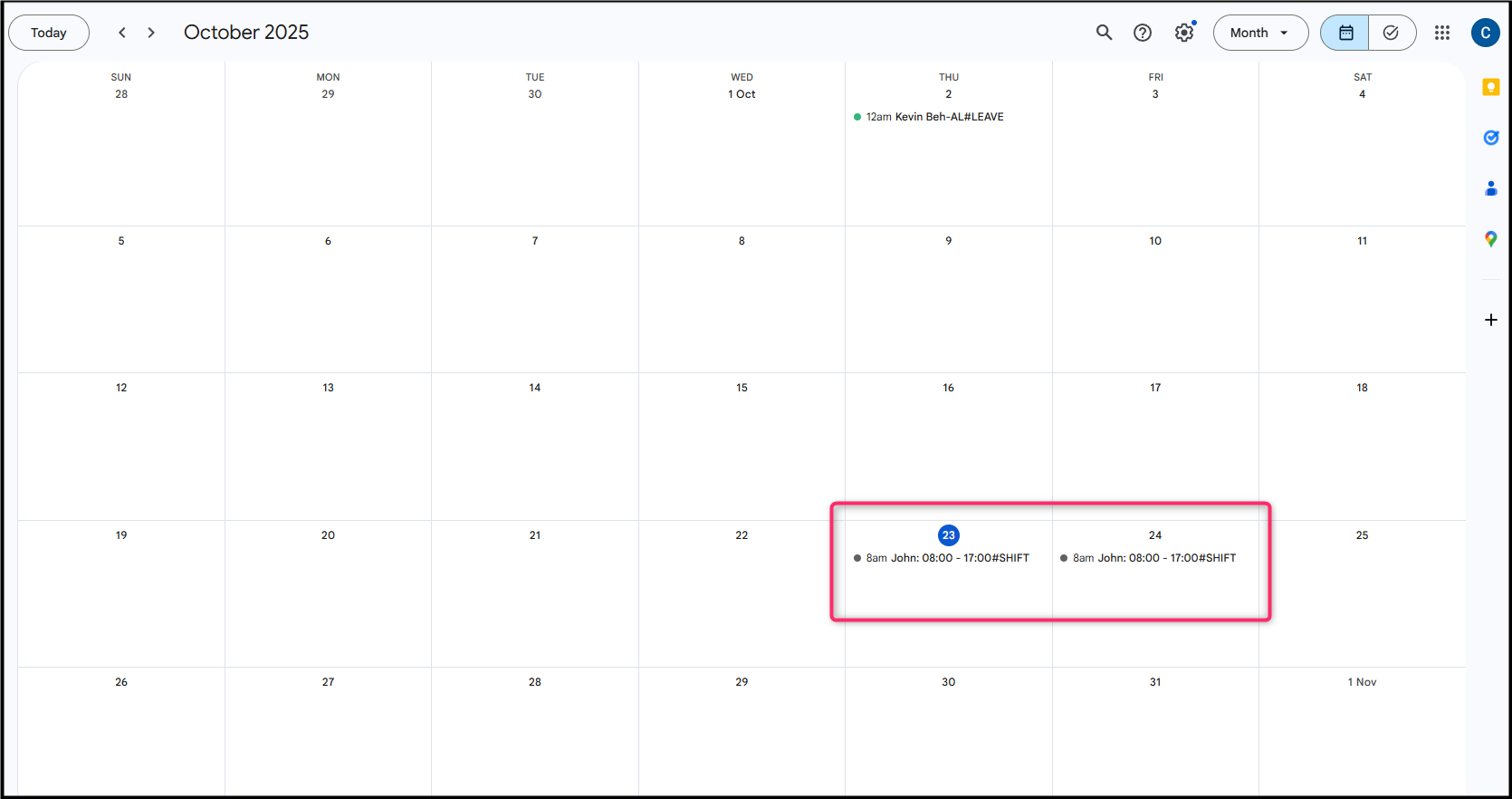
Google Calendar will show employees shift info of the 2 days specified.
Part C: Stopping Calendar Sync
- To stop syncing, go to Manage your google account > Security
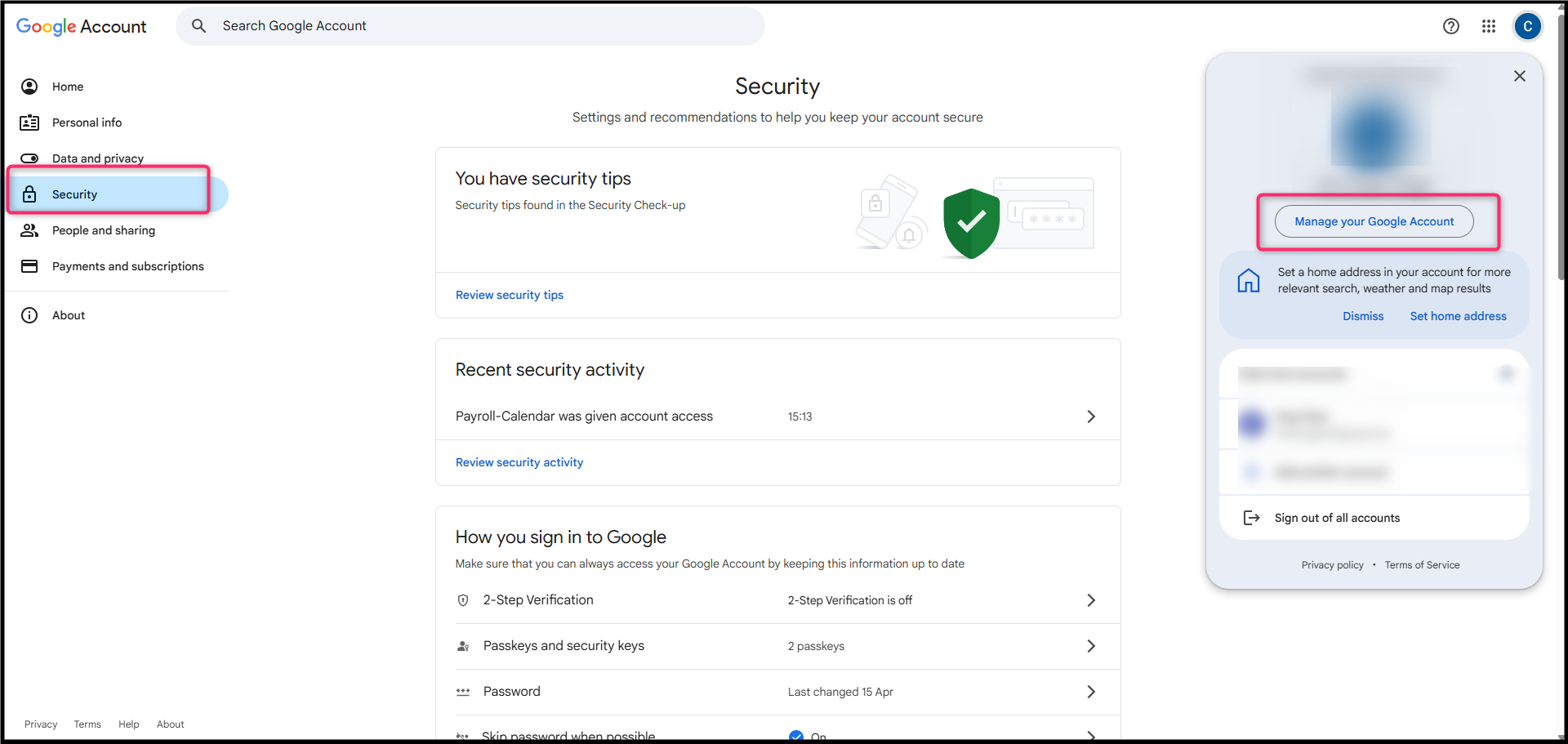
- Look for “Your connections to third-party apps and services” > Payroll Calendar
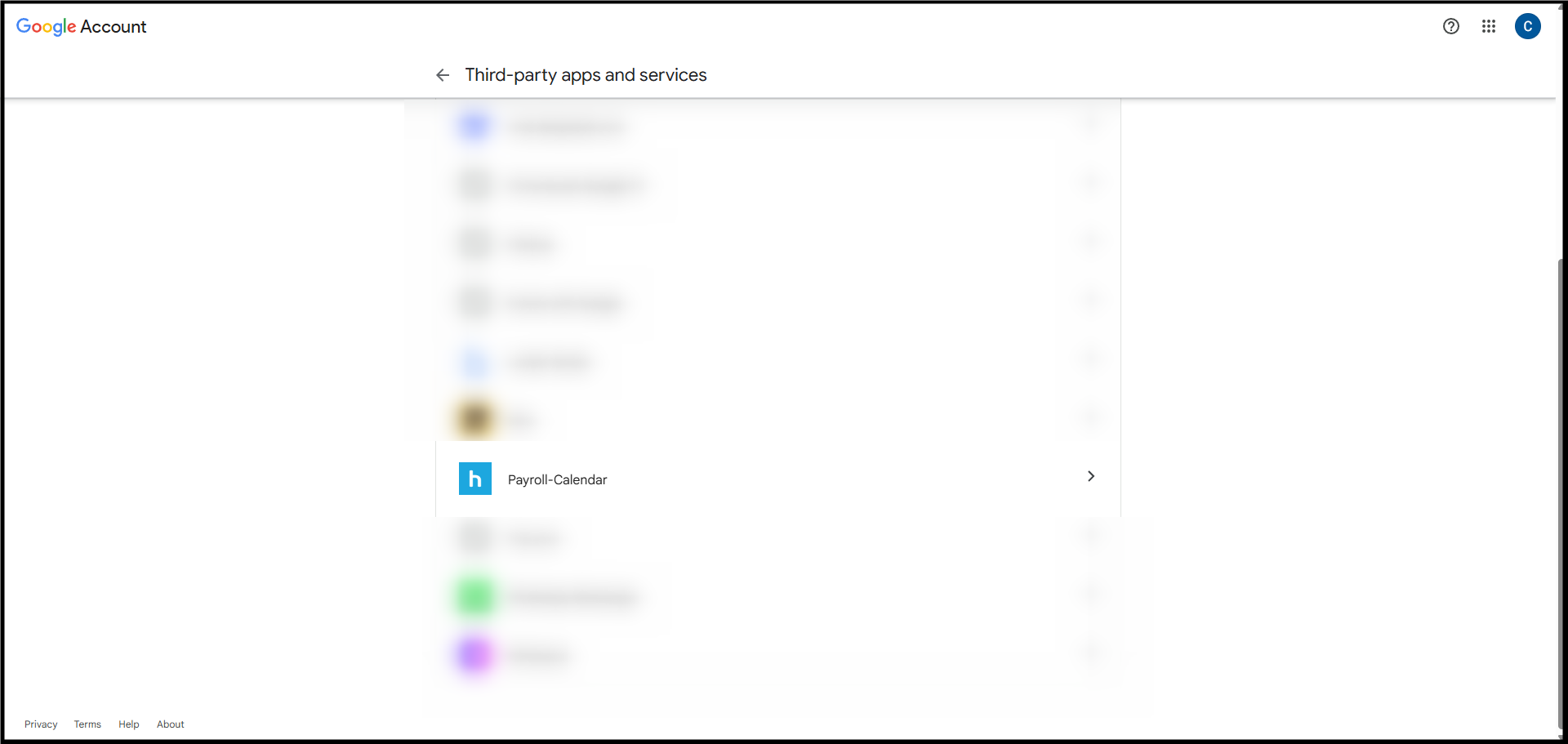
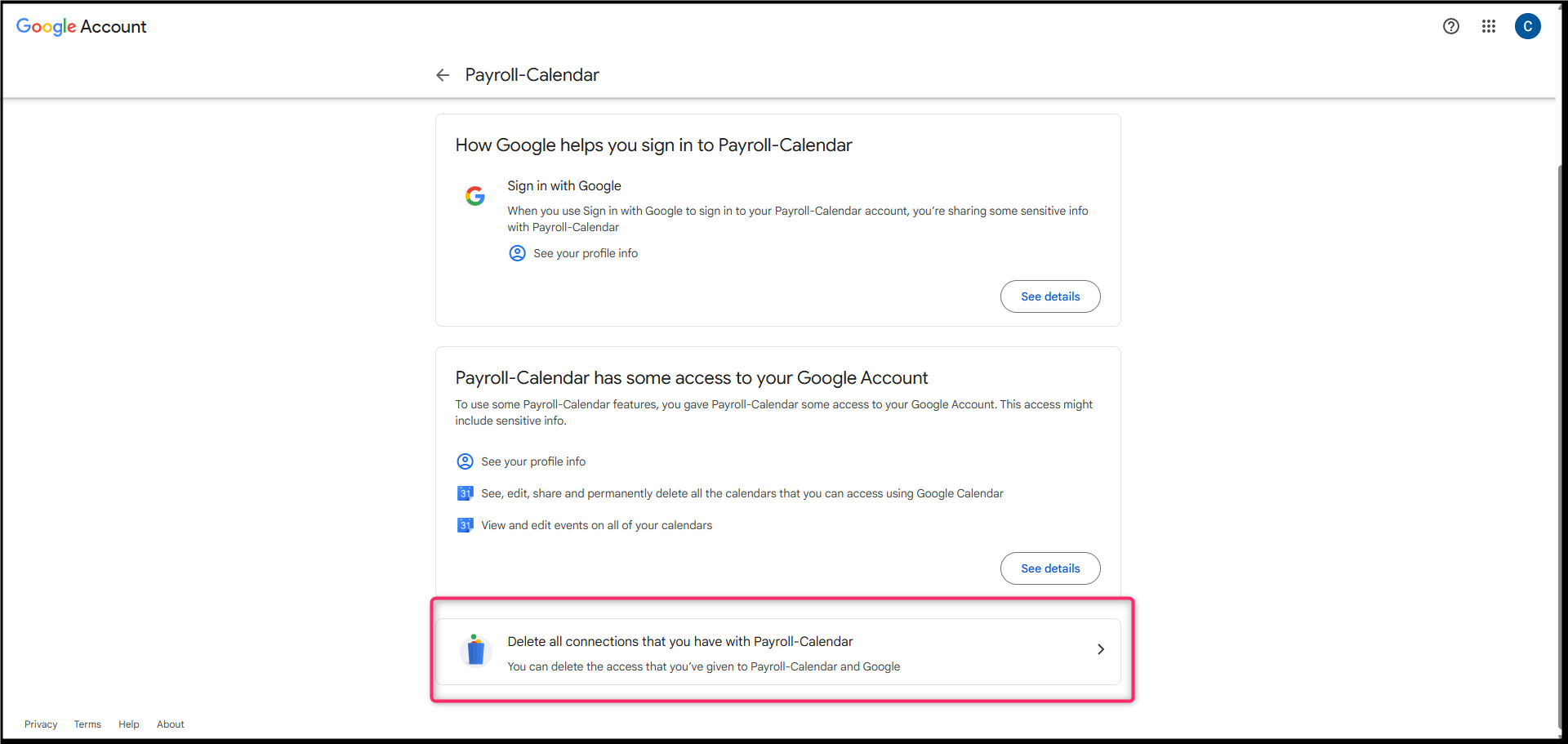
- Select “Delete all connections that you have with Payroll Calendar”
- Click “Confirm”
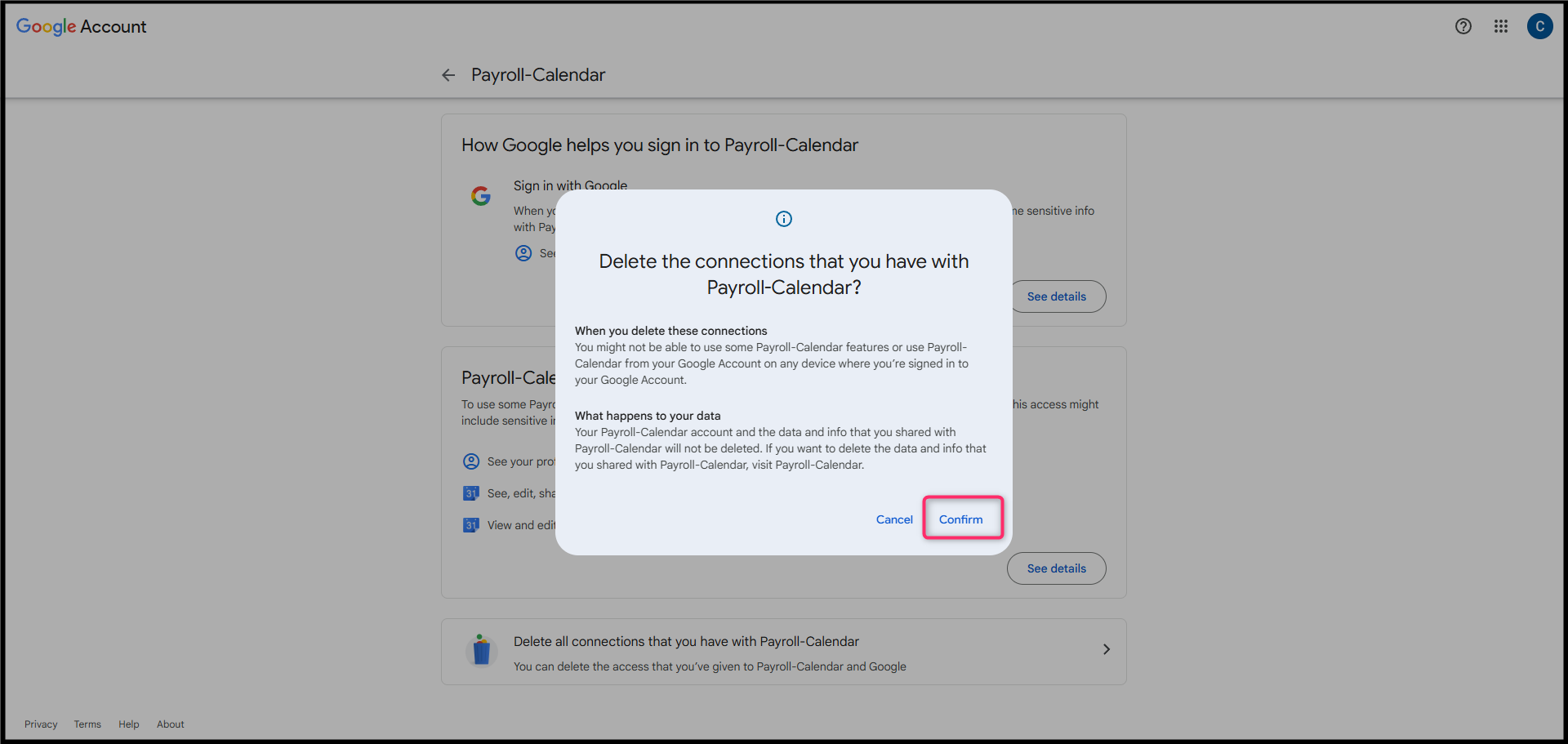
- Once done, HRMS Calendar and notifications with not sync with Google Calendar. Existing events will not be deleted, this only stops future events from being added.
Alternatively
For My Calendar, you can click the Disconnect button to unsync your Google Calendar.
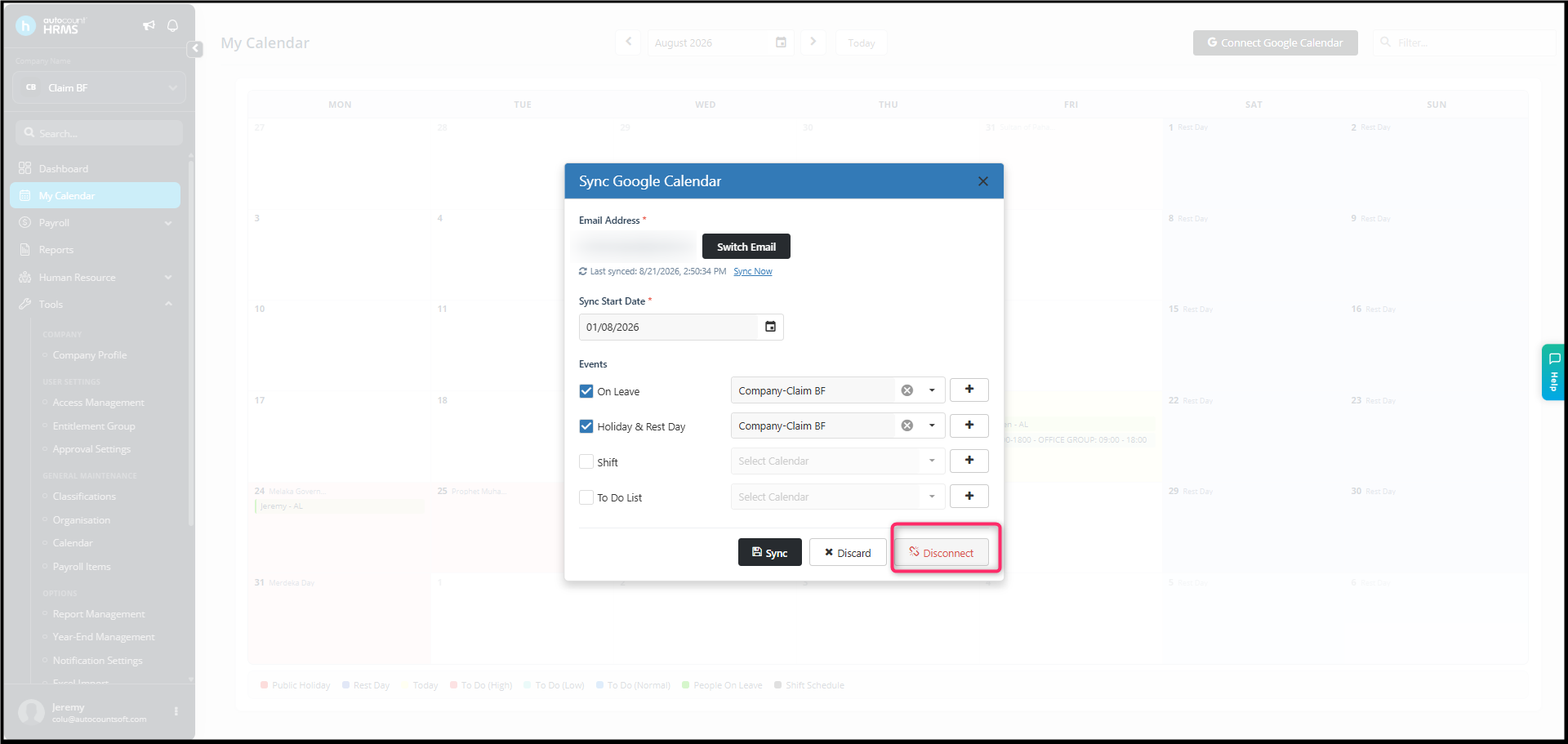
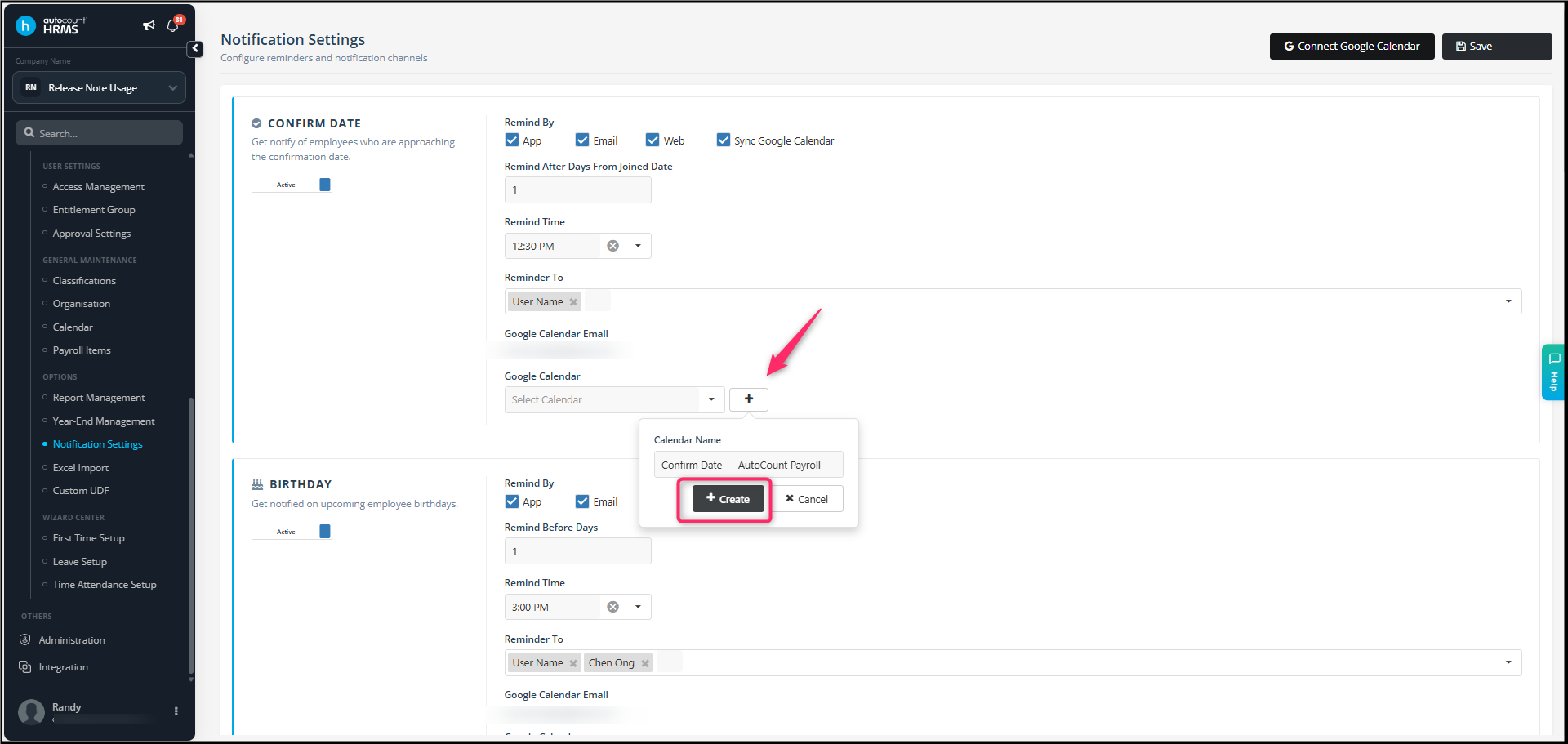
Additional item : Create a New Google Calendar
- Under Google Calendar, click the + button next to the calendar selection field.
- A Create Calendar window will appear.
- Enter the desired name in the Calendar Name field.
- Example: Confirm Date — AutoCount Payroll
- Click Create.
- The new calendar will be created and available for selection.
Notes
- Ensure your Google account remains connected for continuous sync.
- Only authorized HRMS users can activate Google integration feature.
- Syncs 30 days of data from the selected start date.
- Events and notifications can only be added from AutoCount HRMS to Google Calendar.
- This feature is only available for PREMIUM plan.
Written by: ChenOng (20260824)
Reviewed by: Azirah (20260826)